Blog·
Best phone planners for iPhone: 6 ways to plan your day
This guide looks at six kinds of phone planners, what each does well, and what each leaves you to figure out.
Your iPhone already has two planning apps. Apple Calendar keeps track of your meetings, and Reminders keeps track of your tasks. For plenty of people, that's enough.
The problem starts when your calendar and task list tell different stories. You have eight things to finish, three hours between meetings, and no clear way to tell whether it all fits.
That's where a different kind of planner becomes useful.
I am the developer of Matter, a planner for Mac and iPhone that helps you compare your workload with the time you actually have. I personally love Matter, but you should weigh my verdict on Matter accordingly.
This guide looks at six kinds of phone planners, what each does well, and what each leaves you to figure out.
First, what kind of phone planner do you need?
Not every planning app solves the same problem. Some are calendars, some are task managers, and others are digital notebooks. They're often compared as though they're interchangeable, but choosing between them depends on what you need help with.
| Type | Examples | What it leaves to you |
|---|---|---|
| Calendar | Apple Calendar | Deciding what to do between meetings |
| Task manager | Apple Reminders, Todoist | Knowing whether your tasks fit the day |
| Tasks + calendar | TickTick | Building a realistic schedule yourself |
| Auto-scheduler | Motion | Letting the app decide when work happens |
| Daily planner | Sunsama | Making time for a daily planning routine |
| Capacity planner | Matter | Choosing which tasks deserve today's time |
The distinction matters because knowing what you need to do isn't the same as knowing whether you have time to do it.
The question that decides which planner you need
Imagine it's Tuesday. You have a call at 10, another at 3, and eight tasks you'd like to finish.
Your calendar shows the calls. Your task manager shows the eight tasks. But unless you compare the two yourself, neither tells you whether the work will fit.
You might have three hours available and seven hours of work. The problem isn't that you've forgotten anything. It's that you've planned more than the day can hold.
If this happens regularly, there are four things worth checking before choosing a planner:
- Does it know your working hours? A planner shouldn't treat 11 pm as available just because your calendar is empty.
- Can you estimate how long tasks take? A five-minute errand and a three-hour project shouldn't count as equal items.
- Does it account for everything else? Meetings, lunch, commute... time you've already committed shouldn't count as time available for tasks.
- Does it tell you when work won't fit? You should know before the day ends, not when you're pushing unfinished tasks into the evening.
Not every planner needs to pass all four tests. A simple task list might be exactly what you want. But if your days regularly end with unfinished work, these are the features I'd pay attention to.
The best phone planners, compared
1. Apple Calendar and Reminders: best place to start
Apple Calendar and Reminders come with your iPhone and cover the basics well.
Calendar shows your appointments, recurring events, and commitments. Reminders handles tasks, deadlines, recurring to-dos, and location-based alerts. Siri makes it easy to capture something before you forget it.
For a manageable task list and a relatively predictable schedule, you may not need anything else.
The limitation is workload planning. Calendar and Reminders don't provide a combined capacity calculation that compares estimated task hours with your remaining availability. You can see your commitments and tasks, but you still have to work out whether the day is realistic.
Recommendation: Start here. Look elsewhere when you need help deciding how much work to take on, not just remembering it.
2. Todoist: best for keeping tasks organized
Todoist is a strong choice if your main problem is keeping track of everything.
You can quickly add tasks using natural language, organize work into projects, set priorities, and create recurring tasks by typing phrases like "every Friday."
It also offers scheduling features, and a calendar view on its paid Pro plan, so it's more than a basic checklist.
What it doesn't primarily do is calculate your remaining daily capacity from task estimates, working hours, and meetings. You can organize and schedule the work, but deciding whether you've taken on too much is still largely your responsibility.
Todoist has a free plan, with additional features available on paid tiers.
Recommendation: Choose Todoist if you want a capable task manager and prefer to make your own scheduling decisions.
3. TickTick: best for putting tasks on a calendar
TickTick bridges the gap between a task list and a calendar.
Alongside tasks, recurring reminders, and habit tracking, it offers calendar views that let you see work alongside your schedule and assign time to it.
That makes it useful if you like time blocking: choosing a task, finding a space in your calendar, and reserving that time for focused work.
The tradeoff is that you're still responsible for building a realistic schedule. Seeing tasks and events together helps, but it isn't the same as automatically checking how much estimated work your day can accommodate.
TickTick offers a free tier, while some calendar features require Premium.
Recommendation: A good middle ground if you want to plan visually and don't mind arranging the day yourself.
4. Motion: best for automatic scheduling
Motion takes a different approach: it builds much of the schedule for you.
You enter tasks, deadlines, and priorities, and Motion places the work into available calendar slots. When a meeting moves or a new commitment appears, it can rearrange your schedule.
It also schedules around the time you have available.
That's appealing if your calendar changes frequently and you don't want to rebuild your plan every time something moves.
The tradeoff is control. Motion is designed to make scheduling decisions on your behalf, which may feel excessive if you prefer to choose what deserves your attention each day. It's also a paid product rather than a permanently free planner.
Recommendation: Choose Motion if you want your calendar managed automatically and are comfortable letting software decide when tasks happen.
5. Sunsama: best for a deliberate daily planning routine
Sunsama is built around the habit of planning your day.
Each morning, it guides you through choosing tasks, estimating how long they'll take, and arranging your work around existing commitments.
It can also bring tasks in from services such as Asana, Jira, and Slack, which is useful when your responsibilities are spread across multiple systems.
Unlike an automatic scheduler, Sunsama encourages you to make those choices deliberately. Planning becomes a daily routine rather than something the app handles entirely in the background.
That routine is both its strength and its tradeoff. If you enjoy reviewing your priorities every morning, it can help you work more intentionally. If you want to open an app and immediately see what fits, the process may feel like extra work.
Sunsama is a paid subscription.
Recommendation: Best for people who want a structured daily planning ritual, especially when their tasks already live in other apps.
6. Matter: best for knowing how much work fits today
Matter starts with a question I kept coming back to: how much work can actually fit into today?
You add tasks, give them time estimates, and set your working hours. Matter compares the work you've planned with the time available and shows how much capacity remains.
If your tasks exceed that capacity, you can see it before committing to the day.
A task that won't fit is marked Doesn't fit today, with a suggestion for the earliest day that has room. Tasks without a scheduled time are placed into a free slot in the day.
You can also subscribe to calendar feeds so meetings count against your available hours. Matter reads events through an iCal link without changing anything on your calendar or requiring you to sign in to your calendar account.
The important difference from Motion is who makes the decisions. Motion schedules your work automatically. Matter leaves you in control of what goes into today and helps you see whether your choices are realistic.
Matter is free for most things that get you going and make you feel in control and less overwhelmed. For those who want even more control and advanced features, it is a one-time payment. Your data stays on your devices and in your own iCloud.
Recommendation: I built Matter for people who want to choose their own priorities but need a clear answer to whether today's workload fits the hours available.
How to plan your day with Matter on iPhone
You don't need to build a complicated planning system to get started.
1. Add the work you want to finish.
Tap the circle beside the tab bar, then New task, and enter a title. That's all you need to create a task.
2. Set your available hours.
In Settings → Day (tap the circle beside the tab bar, then More, then Settings), choose when your day starts and ends, along with your daily focus cap. The defaults are 8 am to 8 pm and a six-hour focus cap.
3. Estimate your tasks.
Give each task a rough duration. It doesn't need to be perfect. A useful estimate is better than treating a five-minute errand and a three-hour project as equal items on a list.
4. Connect your calendar.
Under Settings → Calendars, add your calendar's iCal feed. Meetings will then count against the time available for tasks.
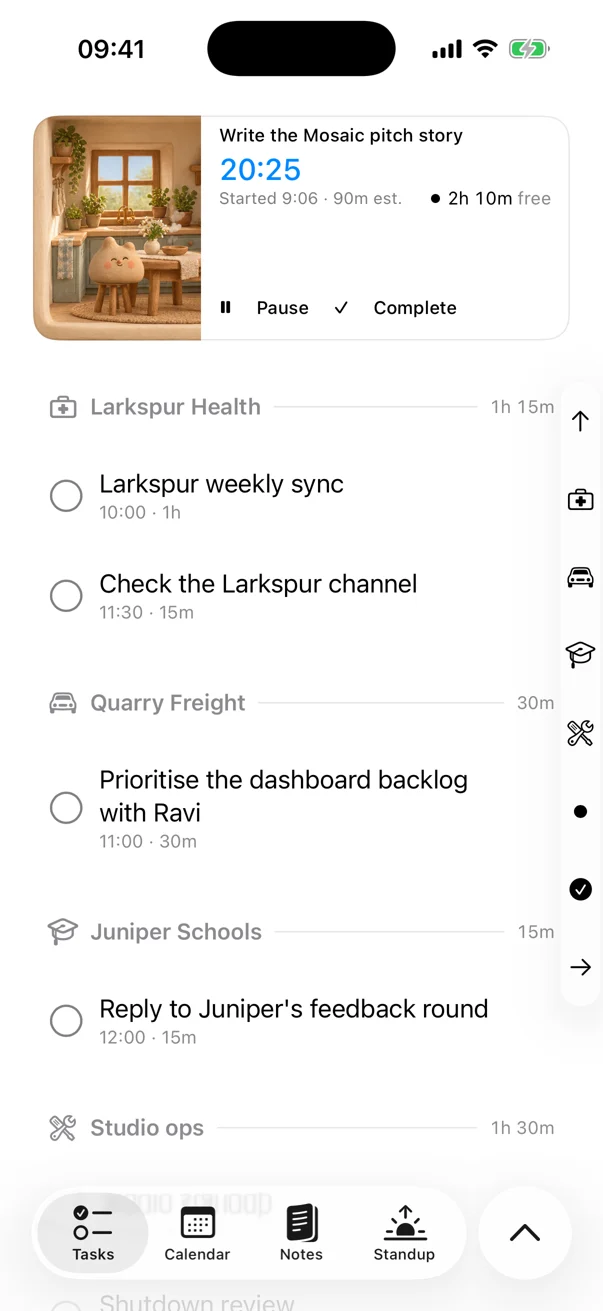
Once you've added a few tasks, the capacity reading shows whether the day is realistic.
If something won't fit, you can move it to tomorrow, a few days later, or next week: hold the task and choose Push to tomorrow, Push out 3 days or Push to next week.
Matter also supports recurring work through templates. And if you repeatedly postpone the same task, it asks you to confirm the move, giving you a moment to reconsider whether that task still belongs on your list.
Frequently asked questions
What's the best free planner for iPhone?
For basic planning, start with Apple Calendar and Reminders. They're free and already integrated into iOS.
Todoist and TickTick also have free tiers, although some features require payment.
If your main problem is fitting tasks into the time available, Matter is free for all these features and has a one-time payment for more advanced ones.
Can a phone planner connect to Google Calendar?
Yes, but the connection depends on the app.
Some planners offer direct Google Calendar integrations. Matter uses a read-only iCal subscription instead. That means it can account for your calendar events without editing them or requiring access to your Google account.
Which phone planners work on Android?
Todoist, TickTick, and several other task managers support Android. Matter is currently limited to Apple platforms.
What's the difference between a daily planner and a task manager?
A task manager helps you capture and organize work. A daily planner helps you decide when that work will happen.
Some apps do both. The more useful distinction is whether the planner simply displays your tasks or helps you understand how much of them you can realistically complete.
Before you download another planner
Open your calendar and count the free hours left in your working day. Then estimate how long your three most important tasks will take.
If you have three hours available and five hours of work, something has to move.
That's the calculation I wanted Matter to make visible. Not to decide what you should work on, but to help you see what your day can hold before you fill it.
You may be happy doing that calculation yourself. If not, Matter is available on the App Store for iPhone, and its capacity reading can show you where today stands.
Matter
To-do list that fits life
For the Mac and iPhone. It works offline, with no account.
Download for MacDownload for iPhone