Start a session
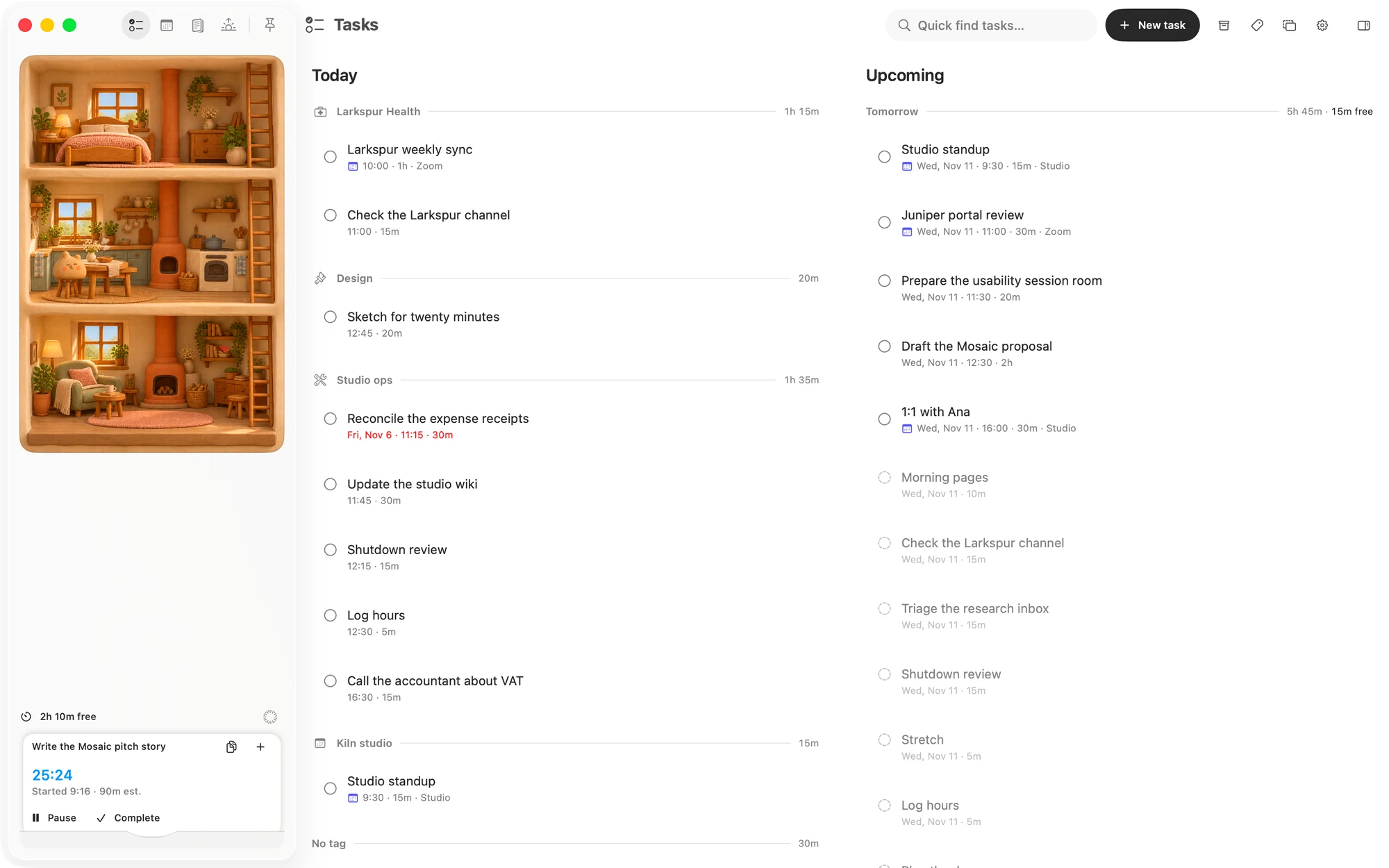
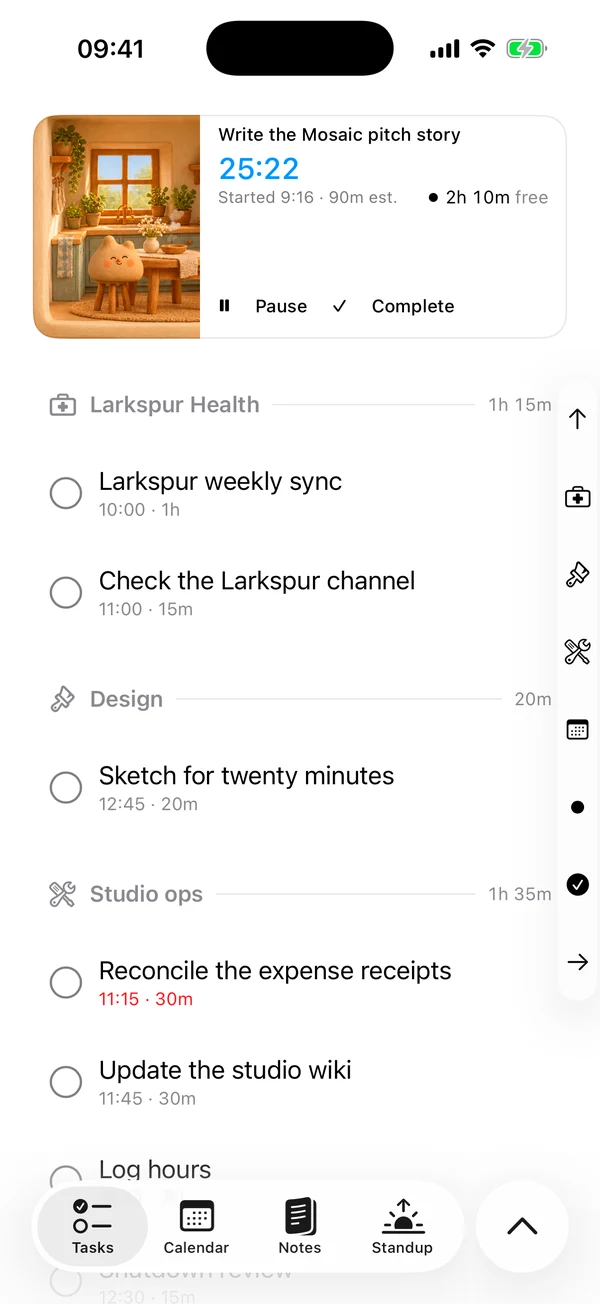
Running work lives in the work bucket. While it runs, a task leaves its place on the board and sits in the bucket as a card with its own clock.
On the Mac
The bucket is at the foot of the sidebar.
- Drag a task from the board onto the bucket. It opens and says Drop to start as you drag over it.
- Or right-click a task and choose Start session.

On the iPhone
The bucket is the card at the top of Tasks.
- Swipe a task to the right and tap Start. A full swipe starts it straight away.
- Or hold a task and choose Start.
Work you have finished can't be started. Neither can a template's coming task, the faint kind on the board, until it has become a real task.
Read the clock
The clock counts down from the task's estimate, and shows the estimate under it, such as of 30m.
- Past the estimate, it keeps going and counts up with a plus sign, such as +4:12, and turns orange. The line under it changes to over 30m.
- With no estimate, it counts up from zero.
- Past a day, it shows days and hours, such as 3d 9h. That usually means a session was left running.
Pause and pick up again
Pause stops the clock and puts the task back on the board. Starting it again later carries on from where the clock stopped, because the clock adds up all the time on that task. It doesn't reset.
On the Mac, ⇧⌘P pauses the card at the front, and pressing it again brings that work back.
Finish
Complete on the card stops the clock and marks the task done. On the Mac, ⇧⌘⏎ does the same for the card at the front.
If you delete a task while it is running, its session stops too. Time you tracked on it stays with it.
Follow up on another day
Use this when you have finished for now and the same task needs to go on another day. It completes the task and makes a new one on the day you pick, with the same title, estimate and tags, then opens the new one so you can change anything about it. The new task starts with a clean clock.
- On the Mac, click + on the card, then pick Tomorrow, Next week or a day in the calendar.
- On the iPhone, hold the card and choose Follow up….
Run more than one
You can run several sessions at once, and each keeps its own clock. The card started last goes to the front.
- On the Mac, click a card behind to bring it forward.
- On the iPhone, tap its strip to bring it forward.
With three or more running, Matter suggests you focus, but it never stops you. The Mac says so for a few seconds when you start the third. The iPhone keeps a line on Tasks for as long as three are running.
Time a meeting
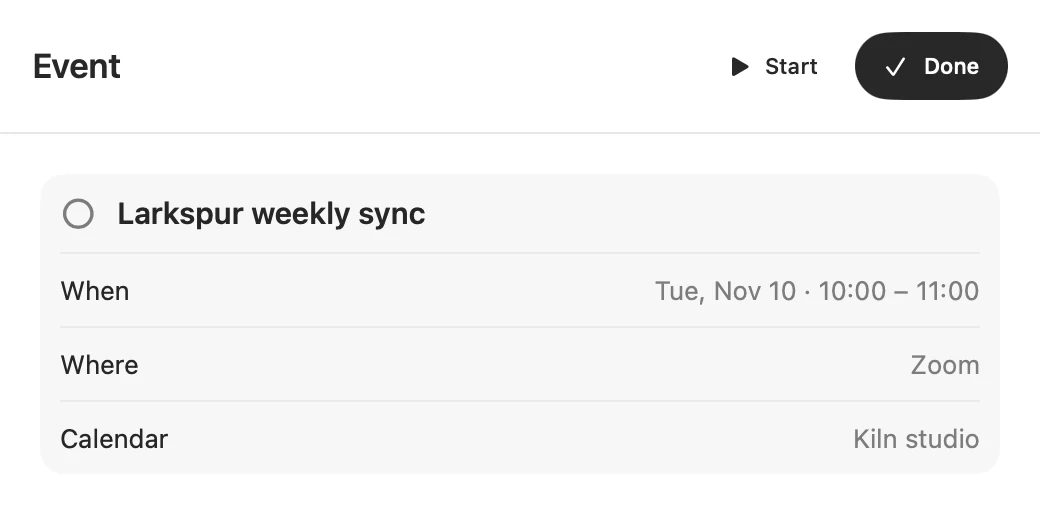
Calendar events work the same way, except that the clock counts down from the length of the event. The event stays in your calendar as it was, because Matter never writes back to your calendar provider.
Open the event and press Start, then Stop when you are done. You can also drag it to the bucket or right-click it on the Mac, or swipe it to the right or hold it on the iPhone.
What your tracked time changes
- Today's capacity. Time you have tracked comes off what the task still needs, so a 60 minute task with 20 minutes tracked counts as 40 minutes still planned. On the Mac, click the capacity reading to see it under Worked.
- The day's plan. Running work stays where it is when Matter lays out the rest of the day around it.
- Your estimates. A finished task with tracked time teaches Matter how long tasks with that tag really take. Once it has seen enough of them, the task editor can offer These usually take 45m, or warn you when tasks like it often run past double their estimate.
- When tasks get placed. Once a tag has at least five sessions in the last four weeks, Matter learns what time of day you usually do that work, and places tasks with that tag around then.
- Analysis. Tracked time is what the week's review is made of. A task you finished without timing it, or with under a minute on the clock, counts its estimate instead, and the review draws that differently so you can tell them apart.
See it from anywhere
Sessions sync through your iCloud, so work you start on one device shows as running on the other.
- In the Mac's menu bar, the title shows how many sessions are running and the clock of the one furthest along. The menu bar panel has Pause and Complete for the one at the front.
- On the iPhone, when the top card scrolls away, a small version hangs under the status bar, with the same clock and buttons. Swipe across it to move to the next session, or tap it to scroll back up.
- On the iPhone's Home Screen, the Today and Today, with Loafy widgets show the running clock, and their Pause and Complete work without opening the app.
Mac keyboard shortcuts
- ⇧⌘P pauses the front card, or brings it back. It is in the Work menu as Pause or resume.
- ⇧⌘⏎ completes the front card.
Matter
To-do list that fits life
For the Mac and iPhone. It works offline, with no account.
Download for MacDownload for iPhone