Today's reading
Today's reading is measured from now, and it updates each minute and whenever something changes.
On the Mac
The chip at the foot of the sidebar says 2h 10m free, Full or Over 30m, and its timer turns orange when you are over.
Click it for the breakdown, with one column for All day and one for From now:
- Worked, the time you tracked today.
- Planned, what is still to do.
- Free, what is left, or how far over you are.
- Budget, what the day holds.
The chip's breakdown also has a button to Analysis. The menu bar panel shows the same day when nothing is running.
On the iPhone
The card at the top of Tasks shows what is planned behind a dot, how much is free or over under it, and Next up. The dot turns orange when you are over. Tap the card to open Analysis.
While work is running, the card shows that work, and free or over sits at the end of the line under its title. When the card scrolls away, the day stays in the small bar under the status bar.
The widgets show the same reading on the Home Screen.
The coming days
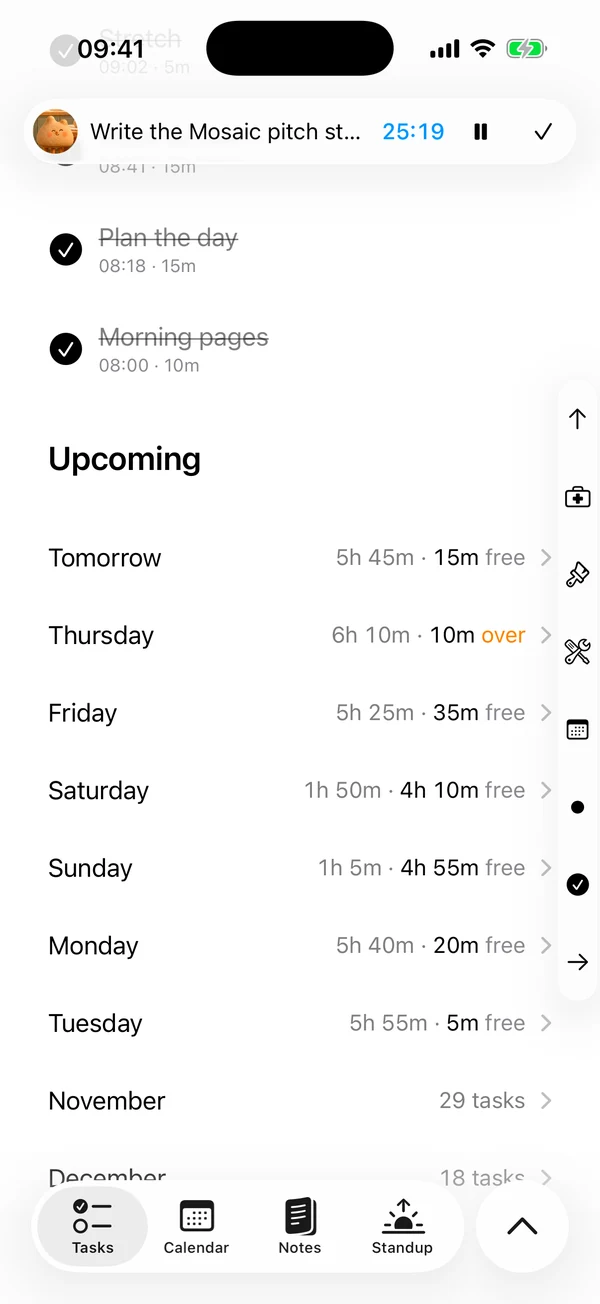
Each of the next seven days that has something on it gets a heading in Upcoming: Tomorrow, then the weekday. Beside it is what is planned and what is left, such as 5h 45m · 15m free, with over in orange.
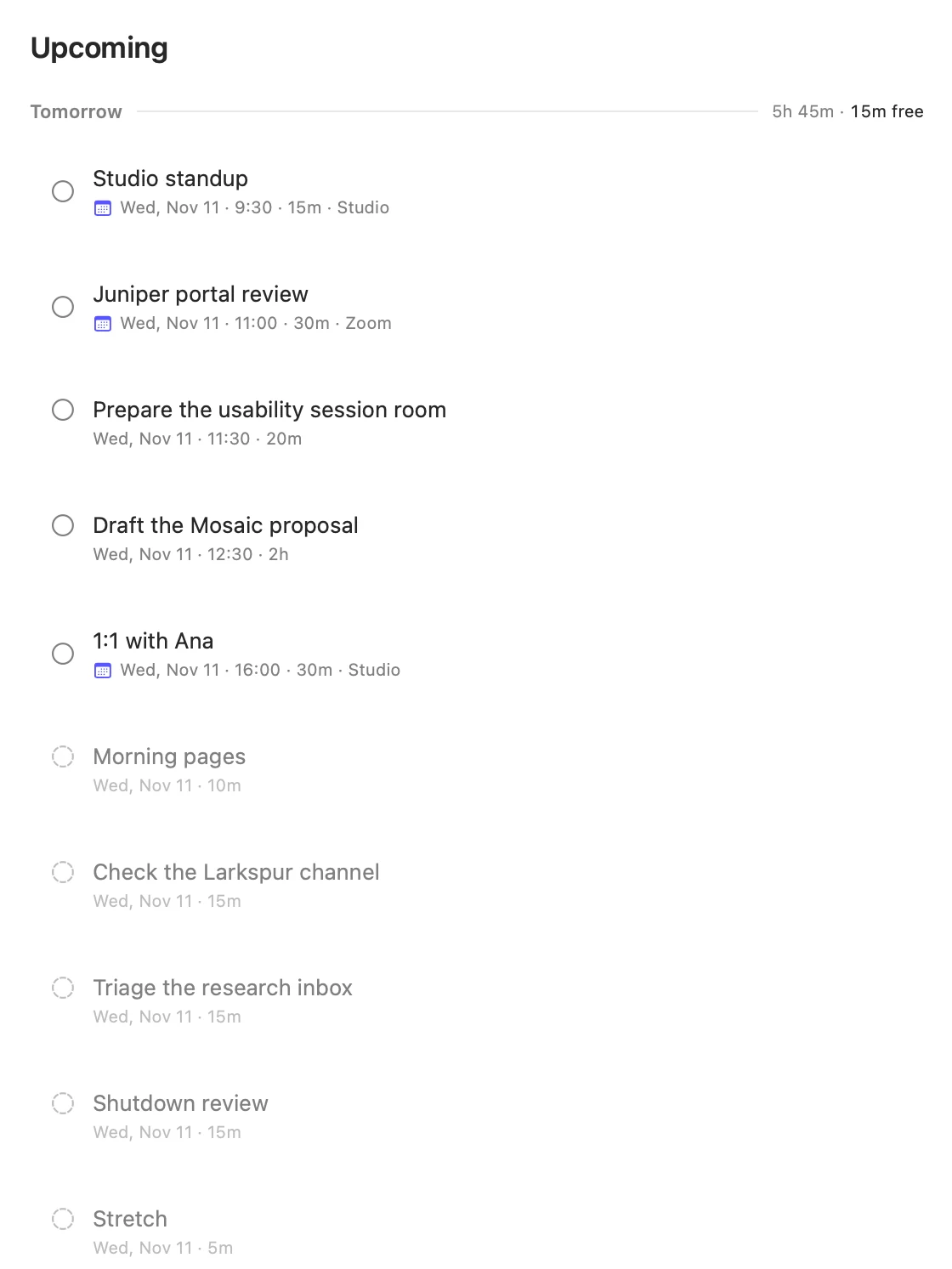
- On the Mac, every day's tasks are listed under its heading.
- On the iPhone, each day starts folded, so you can see which days have room. Tap a day to open it.
Past the seven days, work is grouped by month. A month has no reading, because it isn't one day. The Mac shows its total time and the iPhone shows how many items it holds.
What counts
Planned time on a day is:
- Open tasks on that day, each counting what is left of its estimate. A 60 minute task with 20 minutes tracked counts as 40.
- Events from calendars set to Treat as tasks, counting only the part that falls on that day.
- What your templates will add, before those tasks exist. A day three days out already reads as full as it will be.
- On today only, open tasks from earlier days, because they have carried over.
Finished tasks don't count. Events from your other calendars don't count as planned, but they take room out of the day.
A coming day has its whole window to work with, up to your focus cap. Today only has what is left of it.
Using it
A coming day that reads as over doesn't stop you adding to it. It is there so you can see the problem before the day arrives, and push something if you want to.
The Move to button in the editor reads the same figures to find the soonest day with room.
Matter
To-do list that fits life
For the Mac and iPhone. It works offline, with no account.
Download for MacDownload for iPhone