What tags do
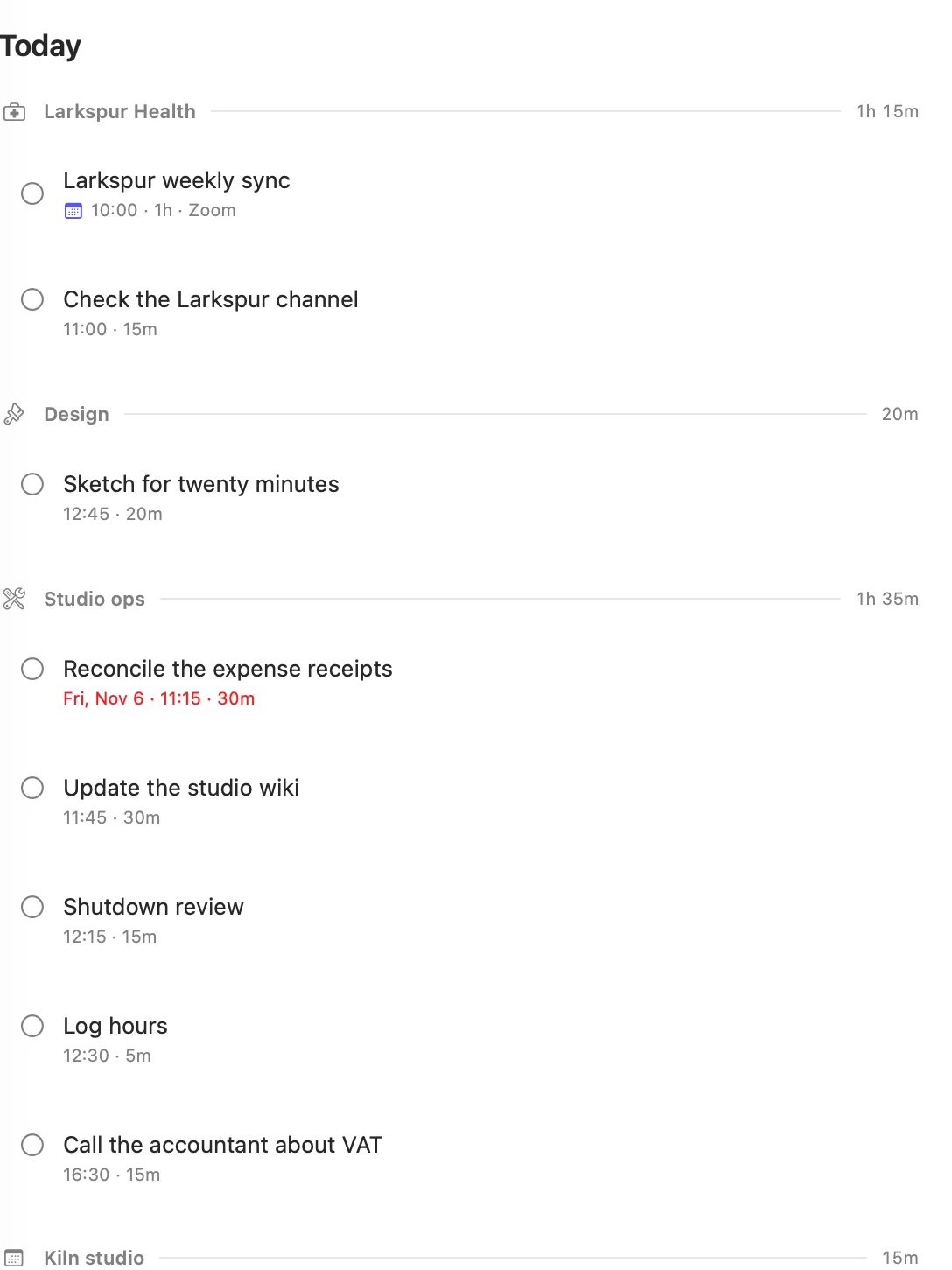
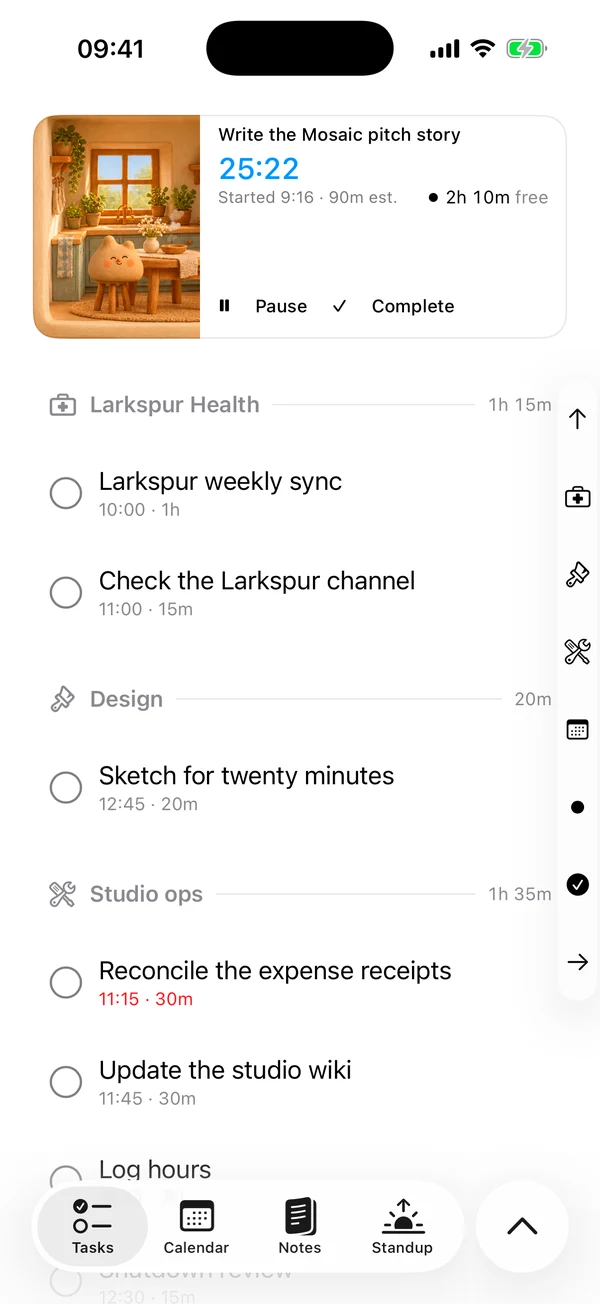
- Group Today. Today's tasks are listed under their tags, each group with the tag's symbol, name and total time. Upcoming is grouped by day instead.
- Break down your time. Analysis shows where your time went by tag.
- Teach Matter. Estimate suggestions and the usual hour for a kind of work are both worked out per tag, and tasks with the same tag are placed together.
A task with two tags is listed under both. It is one task, so finishing it or starting a session from either place moves both.
A task with no tags goes under No tag. A calendar event with no tags goes under its calendar's name.
Tags and tag types
Every tag sits in a tag type, which is a heading such as Clients, with tags such as each client's name under it. The iPhone calls a tag type a group.
A type can't have two tags with the same name, ignoring capitals and accents. Two different types can.
Make tags
On the Mac
Click Tags at the top of Tasks.
- Click + for a New tag type, type its name and press Return.
- The field for its first tag opens. Type a name and press Return. The field stays open for the next one.
- Press ⎋ or leave the field empty when you are done.
Use New tag under a type to add to it later.
On the iPhone
Tap the circle beside the tab bar, then More, Settings and Tags.
- Type in the New group field and tap Add.
- Tap New tag in that group, type a name and tap Add. The field stays open for the next one.
While you are tagging
You don't have to leave the task. In the tag menu, type a name, and Create “name” in lists each type that doesn't have it yet. Pick one. If nothing matches, Return makes the tag in the first type listed.
A new type still has to be made in the Tags list.
Tag a task
Open the task's editor and open its tags, Add tag on the Mac and the Tags row on the iPhone. The menu stays open so you can pick several, and picking one again takes it off.
You can tag a calendar event from its sheet. The tag stays in Matter and is never written back to your calendar.
Change tags
On the Mac
In the Tags panel:
- Rename. Double-click the name, or right-click and choose Rename. This works for a type too.
- Change the symbol. Click the symbol, or right-click and choose Change symbol.
- Hide. Hover over the row and click the eye, or right-click and choose Hide.
- Move or reorder. Drag the tag, or right-click and choose Move to.
- Delete. Hover over the row and click the trash, or right-click and choose Delete.
On the iPhone
In Settings ▸ Tags:
- Rename, change the symbol, or move to another group. Tap the tag. The sheet has Name, Group and Symbol.
- Hide or delete. Swipe the tag left, or tap it and use Hidden or Delete tag.
- Reorder. Tap Edit and drag the handles.
- Rename or delete a group. Tap its heading.
Renaming changes the tag everywhere it is used. A tag can't move to a type that already has one with its name.
Symbols
Tags have symbols, not colours. A new tag gets a symbol at random from those no other tag has. In the picker, a symbol another tag has is faded and can't be picked, because two tags with one symbol would read as one.
Hide or delete
- Hide when you have finished with a tag. It stays on everything that has it, but it is no longer offered when you tag new work. A hidden tag stays in the list, dimmed, so you can show it again.
- Delete when you want it gone. It comes off everything that has it, and the tasks themselves stay. Matter asks first.
Deleting a type deletes its tags too.
Matter
To-do list that fits life
For the Mac and iPhone. It works offline, with no account.
Download for MacDownload for iPhone