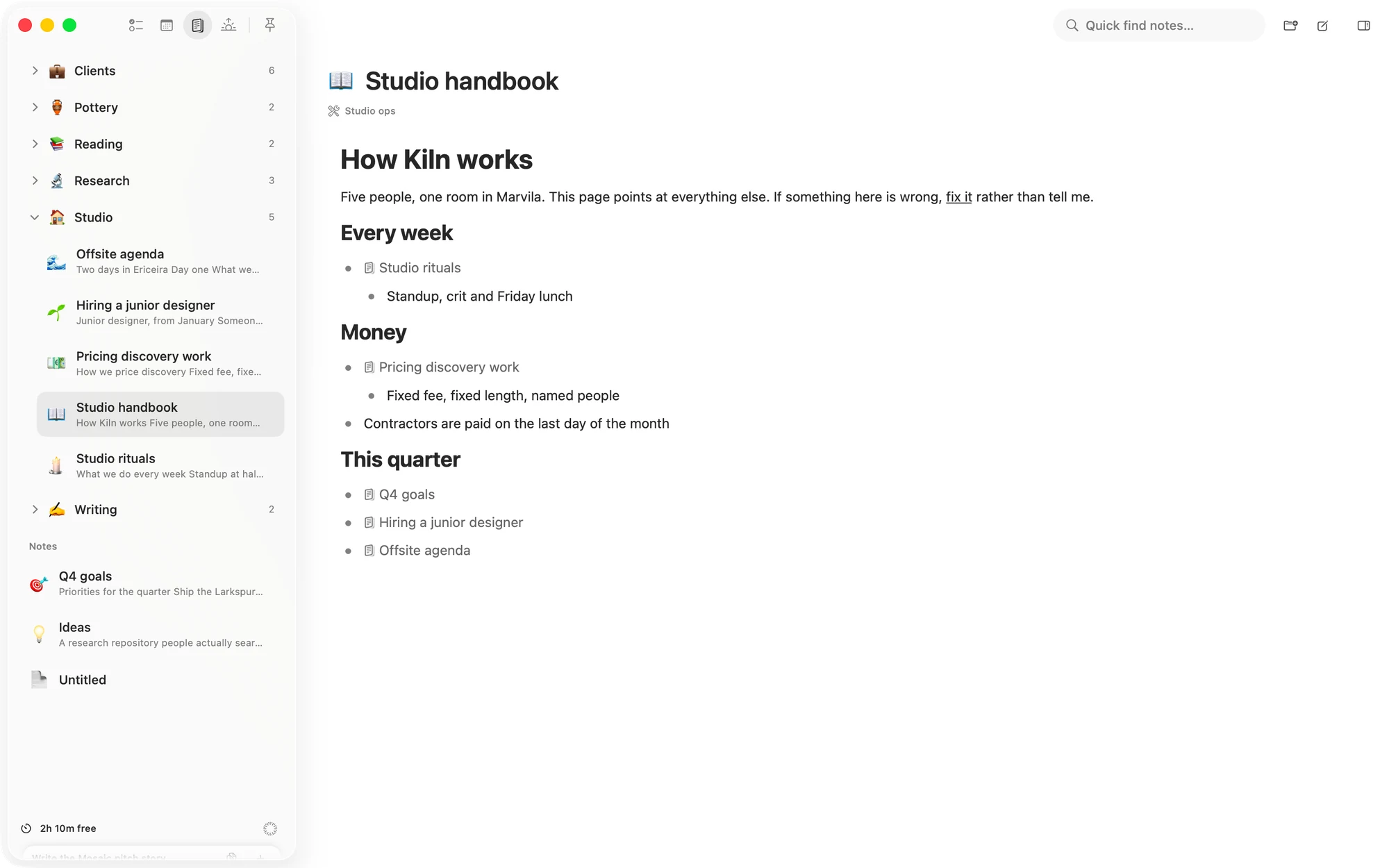
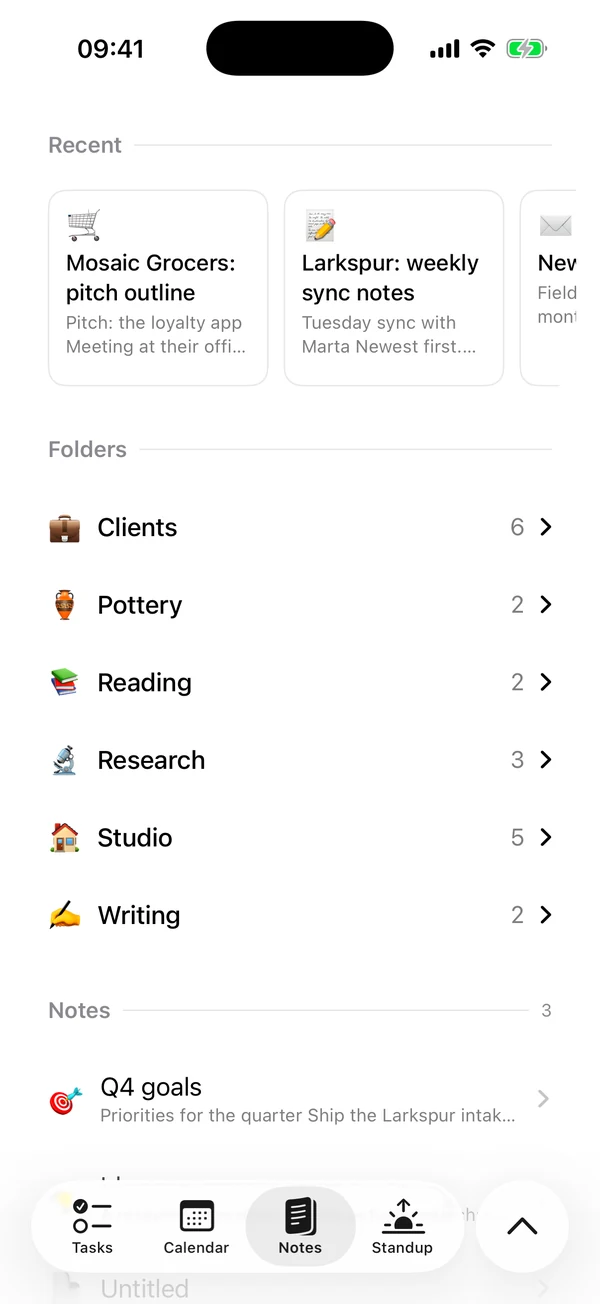
The list of notes
Folders come first, in order of name, with how many notes each holds. Notes in no folder sit under Notes. Notes are ordered by their last edit, newest first, and each shows its emoji, title and first words.
A note with no title shows as Untitled. The Pin board is kept apart and never appears in this list.
On the Mac
The list is in the sidebar on the Notes page. Coming back to the page reopens the note you were last reading.
On the iPhone
With four or more notes, Recent rides on top: up to six cards for the notes you edited last. They are shortcuts to the same notes as the rows below. A note with no title and nothing written gets no card.
Pick an emoji
Every note and folder can wear an emoji from Matter's set, and Remove icon takes it off.
- On the Mac, click the emoji beside a folder's name, or beside the title of the open note.
- On the iPhone, hold a note or folder and choose Icon, or tap the emoji at the top of an open note.
Folders
Folders hold notes, and they don't nest.
Make one. On the Mac, click New folder in the toolbar or press ⌃⌘N, then type the name in place. On the iPhone, open the circle beside the tab bar and tap New folder. A folder with no name shows as Untitled folder.
Open one. Click or tap its row to show its notes, and again to hide them.
Rename one. Right-click it on the Mac or hold it on the iPhone, and choose Rename.
File a note.
- On the Mac, drag it onto a folder, or right-click it and choose Move to folder. To take it out, drag it onto the Notes heading or choose Remove from folder.
- On the iPhone, hold it and choose Move to folder or Remove from folder.
Where a new note goes
On the Mac, click New note in the toolbar or press ⌘N. On the iPhone, open the circle beside the tab bar and tap New note, which is there while a note is open too. The new note opens straight away, filed like this:
- A folder you have opened since you last picked a note takes it. Making a new folder counts as opening it, and closing the folder undoes this.
- Otherwise it goes beside the note you were in. On the Mac that is the note you are reading. On the iPhone it is the note you last opened.
- If that note is in no folder, or there is none, the new note is in no folder too.
New note in folder, on a folder's right-click or hold menu, always files there.
Search the list
Quick find keeps the notes whose title or text holds your words, ignoring case. It reads the mentions in a note too. Only folders whose name matches, or that hold a match, stay on show.
- On the Mac, use Quick find notes… in the toolbar, or press ⌥⌘F to go to it. A closed folder stays closed while you search. Its count shows how many notes in it match, and a click opens it.
- On the iPhone, open the circle beside the tab bar and tap Search. Folders with a match open by themselves, so the matches are in view. Recent hides while you search.
Find in a note
Find marks every match in the open note in yellow, with the current one brighter. Case and accents don't matter, and a match can't run across two lines. Find reads a note's lines. It doesn't read the title, or inside a mention.
On the Mac
Press ⌘F, or choose Find… under Find in the Edit menu. The toolbar's search field becomes Find in note, with your place beside it, such as 2 of 5, or No matches.
- Return or ⌘G goes to the next match. It carries on round from the last match to the first.
- ⇧Return or ⇧⌘G goes to the one before.
- The arrows beside the field go back and forward too.
- ⌘E finds the words you have selected in the note. It is Use selection for find in the menu.
- Esc closes it and leaves the current match selected.
On the iPhone
With a note open, open the circle beside the tab bar and tap Find in note. The system's find bar comes up over the keyboard. By default case and accents don't matter, and the bar's own options can change that. It finds only, and doesn't replace.
Delete
Every delete asks first.
A note goes for good, with everything in it. There is no Archive for notes and no undo.
- On the Mac, right-click it and choose Delete, or press ⇧⌘⌫ for the open note. That key is Delete note in the File menu.
- On the iPhone, swipe the row to the left and tap Delete, or hold it and choose Delete.
A folder goes on its own, and its notes move out to Notes. Right-click it on the Mac or hold it on the iPhone, and choose Delete folder. The question says how many notes move, and that no note is deleted.
To delete lines inside a note, see Select lines.
Mac keyboard shortcuts
- ⌘N New note
- ⌃⌘N New folder
- ⌥⌘F Quick find, for the list
- ⌘F Find in the open note
- ⌘G and ⇧⌘G Next and previous match
- ⌘E Use selection for find
- ⇧⌘⌫ Delete note
Matter
To-do list that fits life
For the Mac and iPhone. It works offline, with no account.
Download for MacDownload for iPhone