Every line in a note has a type, and you can change, nest, move and select lines on their own. Notes save themselves a moment after you stop typing, and when you leave the note.
The line types
- Text is a plain line.
- Heading 1, Heading 2 and Heading 3 are headings, largest first.
- Bulleted list and Numbered list are list items. Numbers count for themselves, and each level of nesting has its own count. A line of another type at the same level starts the count again.
- To-do has a box to tick. A ticked to-do turns grey and is struck through.
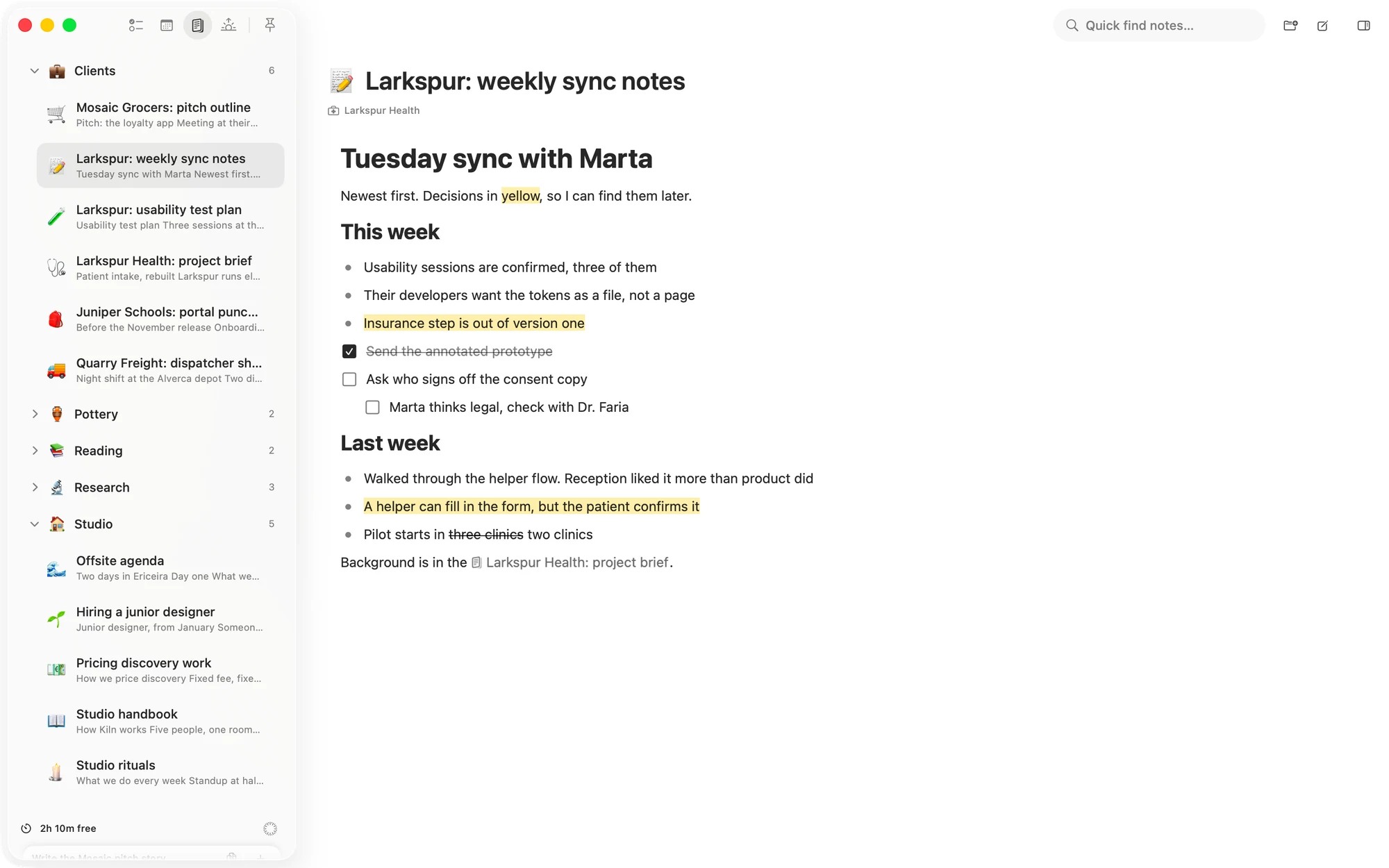
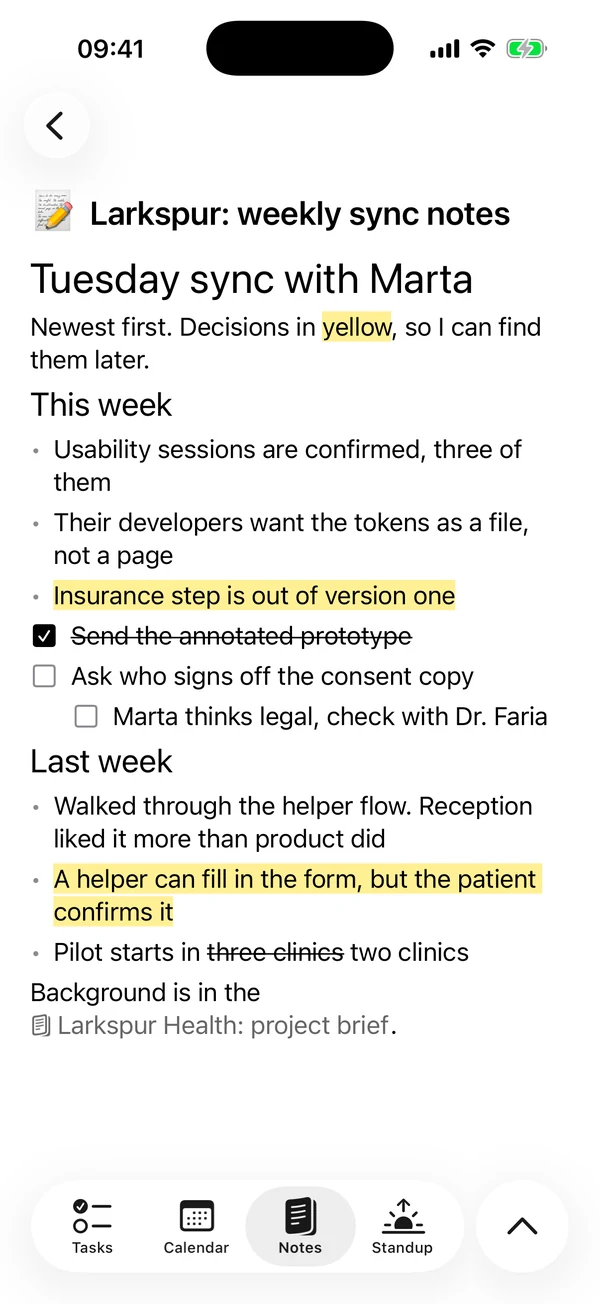
Choose a line's type
Type a marker
Type one of these at the start of a Text line, followed by a space. The marker disappears and the line changes. Any words already on the line stay.
#,##or###for a heading-or*for a bulleted list1.for a numbered list[]or[ ]for a to-do
Undo straight after brings the marker back as ordinary text, along with your words.
Type a slash
Type / on an empty line and pick a type from the menu. The pick replaces the slash. It only opens when the slash is all the line holds. On the iPhone the list appears under the line, and closes if you type past the slash.
Change a line that has words on it
- On the Mac, hover over the line and click the dots to its left, then choose Turn into. Or use the keys in the Format menu, listed at the end of this page.
- On the iPhone, tap + in the bar above the keyboard. The keyboard makes way for Turn this line into, and a tap changes the line the caret is in. The square in the same bar switches a line between to-do and text.
The words and the depth stay as they were.
- A list item turned into another kind of list item takes the rest of its list with it. That means the items after it of the same type and depth, to the end of the list. Lines nested deeper keep their own type. So one pick turns a whole bulleted list into to-dos.
- Anything else changes alone. Text, headings, and a list item turned into text or a heading all change one line. The iPhone's to-do square changes one line too.
- Several selected lines change exactly as selected.
- A line that becomes a to-do starts unticked.
Return and Backspace
- Return splits the line at the caret and moves what is after it to a new line. Under a list item, the new line is the same type at the same depth. Under a heading, it is Text.
- Return on an empty line leaves a level at a time. A nested list item or Text line moves one level out and brings what is nested under it. A list item takes the marker of the list it rejoins, or turns into Text if it lands beside a Text line or a heading. At the left edge, an empty list item turns into Text.
- Backspace at the start of a line turns a heading or list item into Text, keeping the words. Pressed at the start of a Text line, it joins the line onto the one above.
- ⇧Return on the Mac adds a line break inside the line.
Nest lines
- On the Mac, press Tab to indent and ⇧Tab to outdent, or ⌘] and ⌘[.
- On the iPhone, use the indent and outdent buttons in the bar above the keyboard.
Lines nested under a line always go with it. A line can be at most one level deeper than the line above it, so the first line of a note can't be indented. The limit is eight levels, and indenting does nothing if it would push a nested line past that.
A list item outdented into another list takes that list's marker, so a bullet that lands in a numbered list becomes numbered. If that list is to-dos, it arrives unticked. Text and headings keep their type.
Move lines
On the Mac
Drag a line by the dots to its left. A dark rule shows where it will land, above the line you are over, and anything nested under it comes along. A drag can't place a line at the very end of a note, so use ⌃⌘↓ for that.
⌃⌘↑ and ⌃⌘↓ move the line one step. A step passes the neighbouring line along with whatever is nested under it. At the top or bottom of the note nothing moves. ⌘D puts a copy of the line and what is nested under it right below, with the caret in the copy.
If a moved line would end up too deep for what is now above it, it comes in just far enough.
On the iPhone
There is no drag for lines. Select them, tap Cut, and paste where you want them. With a keyboard connected, ⌃⌘↑, ⌃⌘↓ and ⌘D work as they do on the Mac.
Select lines
A selection shows as a grey band with a dark line down its left edge. Keys for lines act on everything in it.
On the Mac
- Esc selects the line with the caret. Esc again ends the selection.
- ⌘A selects the words in the line. ⌘A again selects every line in the note.
- Drag from beside the lines, or from below them, to select the lines you pass. The note scrolls when you reach its top or bottom edge.
- ⇧↑ and ⇧↓ add or remove a line once lines are selected.
With lines selected:
- The dots' menu on a selected line acts on all of them: Turn into, Copy, Cut, Delete, Outdent and Indent. Delete asks first, and says you can undo it.
- The Delete key removes them straight away, and ⌘Z brings them back.
- Typing replaces all the selected lines. Paste does too.
A click in the text ends the selection. A click beside the lines ends it too, and a click below the last line puts the caret at the end of the note.
Select words across lines on the Mac
Drag out of a line, ⇧-click in another line, or press ⇧ and an arrow key past a line's edge. ⌘⇧↑ and ⌘⇧↓ stretch the selection to the start and end of the note.
Copy, Cut, Paste, Delete, typing and formatting act on the words. The keys for lines and Tab act on every line the words touch. Esc turns it into a selection of those whole lines.
On the iPhone
Selecting words stays inside one line. To select whole lines, do one of these:
- Drag two fingers down the lines.
- Hold the margin beside a line.
- Choose Select line in the text menu, the one with Copy and Paste.
The keyboard goes down, and a tap on another line stretches the selection to it. A bar takes the keyboard bar's place with Copy, Cut, Delete, Turn into, Outdent, Indent and Close. Delete asks first, and says you can undo it. With a keyboard connected, Esc selects the line with the caret.
Undo
- On the Mac, press ⌘Z to undo and ⇧⌘Z to redo.
- On the iPhone, Undo is in the bar above the keyboard, and Redo is in the bar that Format opens.
Undo covers typing and every change to lines, including lines you deleted. It lasts while the note stays open.
In the Journal and the Pin board
The Journal and the Pin board use this same editor, with the same line types and keys. A Journal prompt doesn't have the drag from beside the lines on the Mac, or any of the three ways to select whole lines on the iPhone.
Mac keyboard shortcuts
These are in the Format menu. They act on the line with the caret, or on all the selected lines.
- ⌥⌘0 Text
- ⌥⌘1, ⌥⌘2, ⌥⌘3 Heading 1, 2, 3
- ⌥⌘4 To-do
- ⌥⌘5 Bulleted list
- ⌥⌘6 Numbered list
- ⇧⌘U Tick to-do. With several selected, it ticks them all, or unticks them if all are ticked.
- ⌃⌘↑ Move line up
- ⌃⌘↓ Move line down
- ⌘D Duplicate line
- ⌘] Indent
- ⌘[ Outdent
With a keyboard connected to the iPhone, the same keys work in a note.
Matter
To-do list that fits life
For the Mac and iPhone. It works offline, with no account.
Download for MacDownload for iPhone