Write today
Each day has one entry. Matter makes it only when you ask, so a day you skip leaves nothing behind.
On the Mac
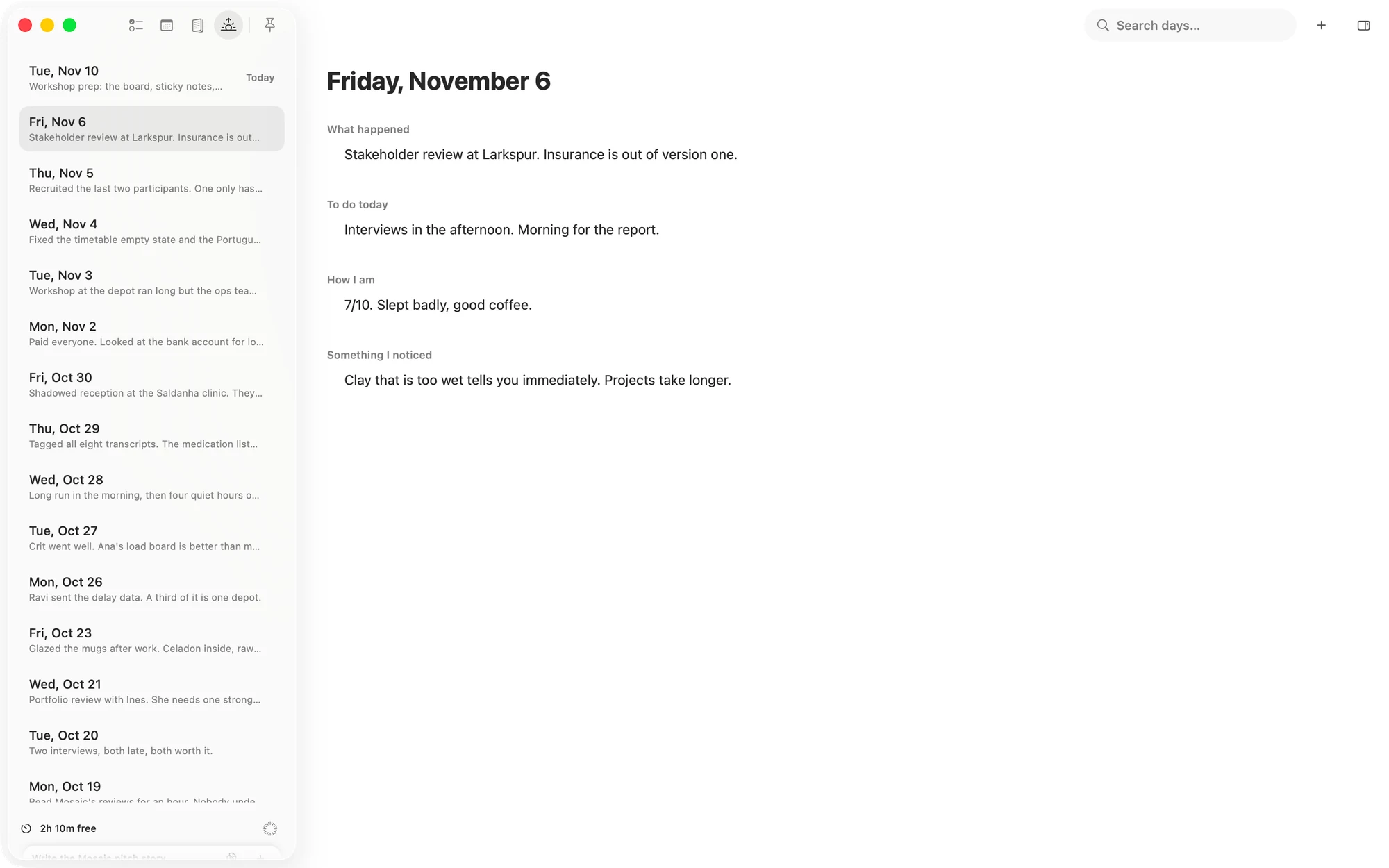
Open the Journal from the icons at the top of the sidebar, then click Add today, the + in the toolbar, or press ⌘N. If today's entry already exists, this opens it.
On the iPhone
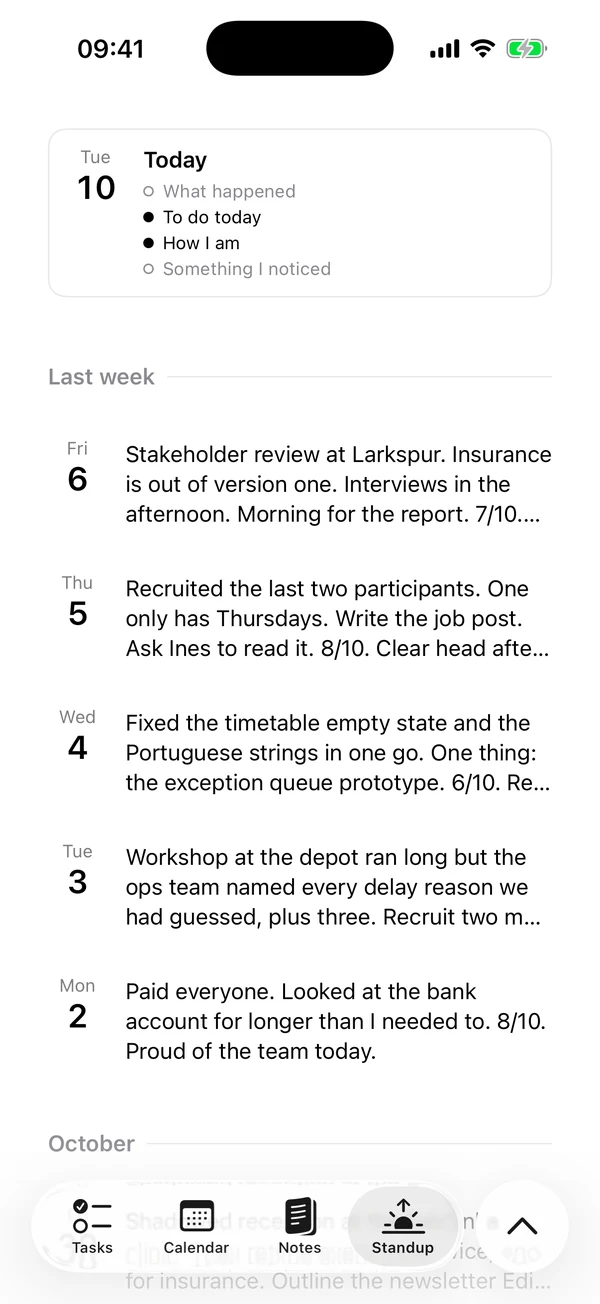
Open the Journal tab and tap the Today card at the top. Add today, in the circle beside the tab bar, does the same.
The card has a dot for each prompt, filled once you have written something under it. An empty prompt is an outline.
The prompts
Every day has the same four prompts:
- What happened
- To do today
- How I am
- Something I noticed
You can't rename, reorder or remove them. Fill in as many as you like and leave the rest.
Each prompt has its own space, and you write there as you do in a note: lists, to-dos, dates and links all work. There is nothing to save.
What you write under To do today stays in the Journal. It doesn't add tasks to your board.
Past days
You can open and change any past day. You can only add an entry for today, so a day you missed has no entry.
On the Mac
The days are listed in the sidebar, newest first, each with its first line. Today is marked Today. Click a day to open it. The page keeps the day you last had open.
On the iPhone
Below the Today card, the days run newest first under This week, Last week and then each month. Each shows its date and up to three lines of what you wrote. Tap one to open it.
A day you opened and left empty stays in the list until you delete it. The iPhone marks it Nothing written.
Search
Search looks through what you wrote on every day and keeps the days that match. It ignores capitals. The prompts themselves are not searched.
- On the Mac, use Search days… in the toolbar, or press ⌘F.
- On the iPhone, tap the circle, then Search.
Delete a day
Matter asks first, because a deleted day is gone for good. It doesn't go to the Archive.
- On the Mac, right-click the day in the sidebar and choose Delete.
- On the iPhone, swipe the day to the left and tap Delete.
On both devices
The Journal syncs through your iCloud, so what you start on one device you can finish on the other.
Mac keyboard shortcuts
These work while the Journal is open.
- ⌘N adds or opens today.
- ⌘F goes to search.
Matter
To-do list that fits life
For the Mac and iPhone. It works offline, with no account.
Download for MacDownload for iPhone