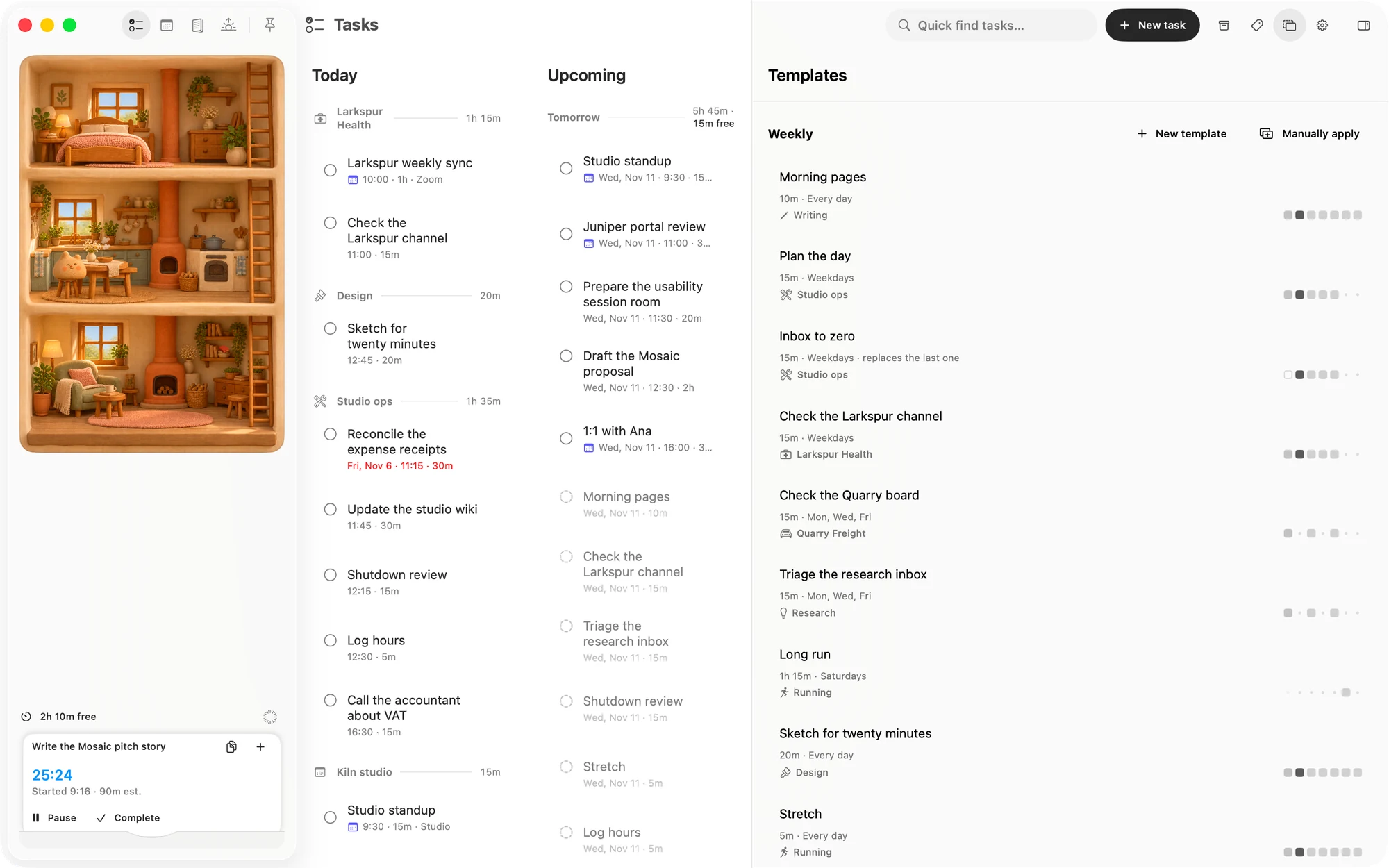
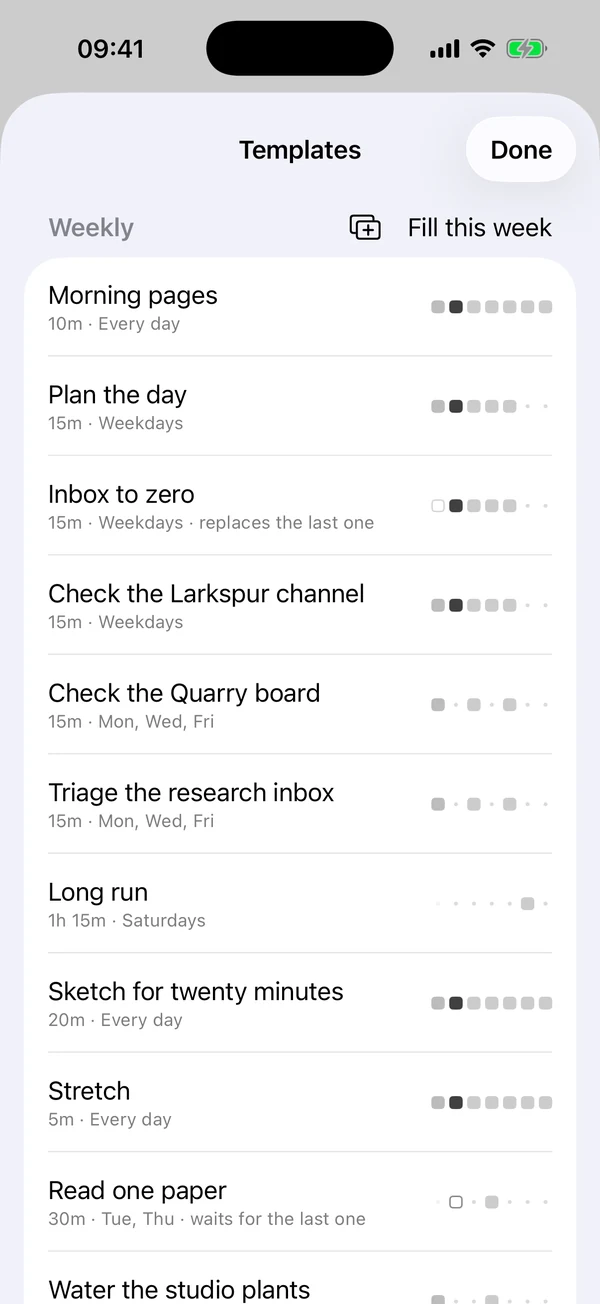
This page is about making and managing templates. For how their tasks arrive and look on the board, see Recurring.
Open your templates
- On the Mac, click the Templates button in the toolbar on the Tasks page. It opens in the side panel, and clicking it again closes it.
- On the iPhone, on Tasks, tap the circle beside the tab bar, then More, then Templates.
There are two lists. Weekly holds every template that lands on days of the week, including every day. Monthly holds the ones that land on dates in the month.
Make a template
Choose New template in either list, then:
- Type a title.
- Set Repeats.
- Set the Estimate. A new template starts at 15m.
- Add Tags if you want them. Tags are optional, and the tasks it adds get the same ones.
A new weekly template starts on Fridays, and a new monthly one on the 4th, so check Repeats before you finish.
Every template needs a title. If today is one of its days, today's task usually arrives as soon as you finish.
On the Mac
Each change is written as you make it, so there is no Cancel. Done or Esc closes the sheet. Close a new template with no title and it is discarded. Empty the title of an existing one and it gets its old title back.
If the title looks like a template you already have, the sheet says Already a template or Might already be a template. It won't stop you.
On the iPhone
Nothing changes until you tap Save, which needs a title. Cancel leaves everything as it was.
Choose when it repeats
Repeats offers:
- Every day or Weekdays, in one click.
- The seven days, Monday to Sunday, to switch on and off. A weekly template always keeps at least one.
- Monthly, with the dates of the month to switch on and off, and Last day. A monthly template always keeps at least one.
A template can have several dates, such as the 1st and the 15th. A date the month doesn't have lands on its last day, so the 31st in April is the 30th, and a template on both the 30th and the 31st gets one task that month.
Picking Last day replaces the dates you had lit. A date you pick after it joins it, so you can still have the 15th and the last day.
Changing Repeats moves a template between the two lists. Picking a day makes a monthly template weekly on that day alone. Picking Monthly brings back the dates it had, or the 4th if it never had any.
If the last one isn't done
Repeats also asks what to do when its next day comes and an earlier task is still open.
- Add another is the default. Each day gets its own task, and the earlier one stays, overdue.
- Wait for it adds nothing while an earlier one is open. That one carries over, and the next arrives on its next day once it is done. Finish the earlier one on one of its days and it counts as that day's.
- Replace it adds the new task, and an earlier one nobody has started goes to the Archive. An earlier one that you timed, gave a time or pushed is left alone.
A template row names the choice unless it is the default, such as replaces the last one.
Add tasks early
A template adds its task on the day, so you don't have to do anything. To have tasks on the board sooner, so you can arrange, push or start them ahead of time, use the button in the list's heading.
- Weekly: Manually apply on the Mac, Fill this week on the iPhone. This adds a task for each weekly template's days from today through Sunday.
- Monthly: Manually apply on the Mac, Apply on the iPhone. This adds a task for the next of each of a monthly template's dates. Once this month's date has gone, the next one is next month's.
Pressing it again adds nothing new, and it doesn't bring back a day whose task you deleted.
Read a template's row
Each row shows the title, the estimate and when it repeats, and on the Mac its tags. Click or tap the row to edit it.
A weekly template also shows its week as squares, Monday to Sunday. Days already gone are dimmed.
- A solid square means its task is on the board.
- A light square means it will come on its own.
- An outline means its day passed with no task, or its task was deleted.
- A faint dot is a day it doesn't land on.
On the Mac, rest the pointer on the squares to read the week in words.
A monthly template shows a checkmark when the next of each of its dates already has a task, and a faint dot when one is still to come.
Change or delete a template
Editing a template changes the days still ahead. Tasks it has already added keep their own title, estimate and tags, and you change those like any other task.
Deleting one asks first, because it is removed for good. The tasks it already added stay on the board, and the ones still ahead go with it.
- On the Mac, rest the pointer on the row and click the trash, or right-click the row and choose Delete.
- On the iPhone, swipe the row to the left and tap Delete, or hold it and choose Delete, or open it and tap Delete template at the foot of its sheet.
What it means for your days
- A task always lands on its day, whether or not the day has room. The capacity reading says how the day stands.
- Coming tasks count. A day's capacity includes template tasks that haven't arrived yet, so you can see them in Upcoming capacity.
- A task keeps its place in the pattern. Push Monday's task to Wednesday and Monday stays used, and Wednesday still gets its own.
- What you delete or skip stays gone. That day won't be filled again.
- A missed date stays missed. A day that passes with no task isn't made up later.
Matter
To-do list that fits life
For the Mac and iPhone. It works offline, with no account.
Download for MacDownload for iPhone