This page is about the tasks themselves. Making and changing the templates that bring them is on Templates.
When a task arrives
A template's task is made on its day, with the template's title, estimate and tags, and then placed in the day.
- When it happens. When Matter opens, each time it comes forward, and at midnight while it is running. The iPhone can also do it in the background when iOS wakes the app.
- It always lands. A recurring task goes on its day whether or not the day has room. It is never refused. The day's reading says how it stands.
- A missed day stays missed. If Matter doesn't run on that day on any of your devices, that day's task isn't made later.
- It waits for iCloud first, so your Mac and iPhone don't each make the same task. If they both do before they have synced, Matter keeps the older copy and moves the other to the Archive, as long as nobody has worked on it.
Coming tasks
For the next seven days, each task still to come shows in Upcoming under its day. It is drawn faintly, behind a dashed circle, with no time.
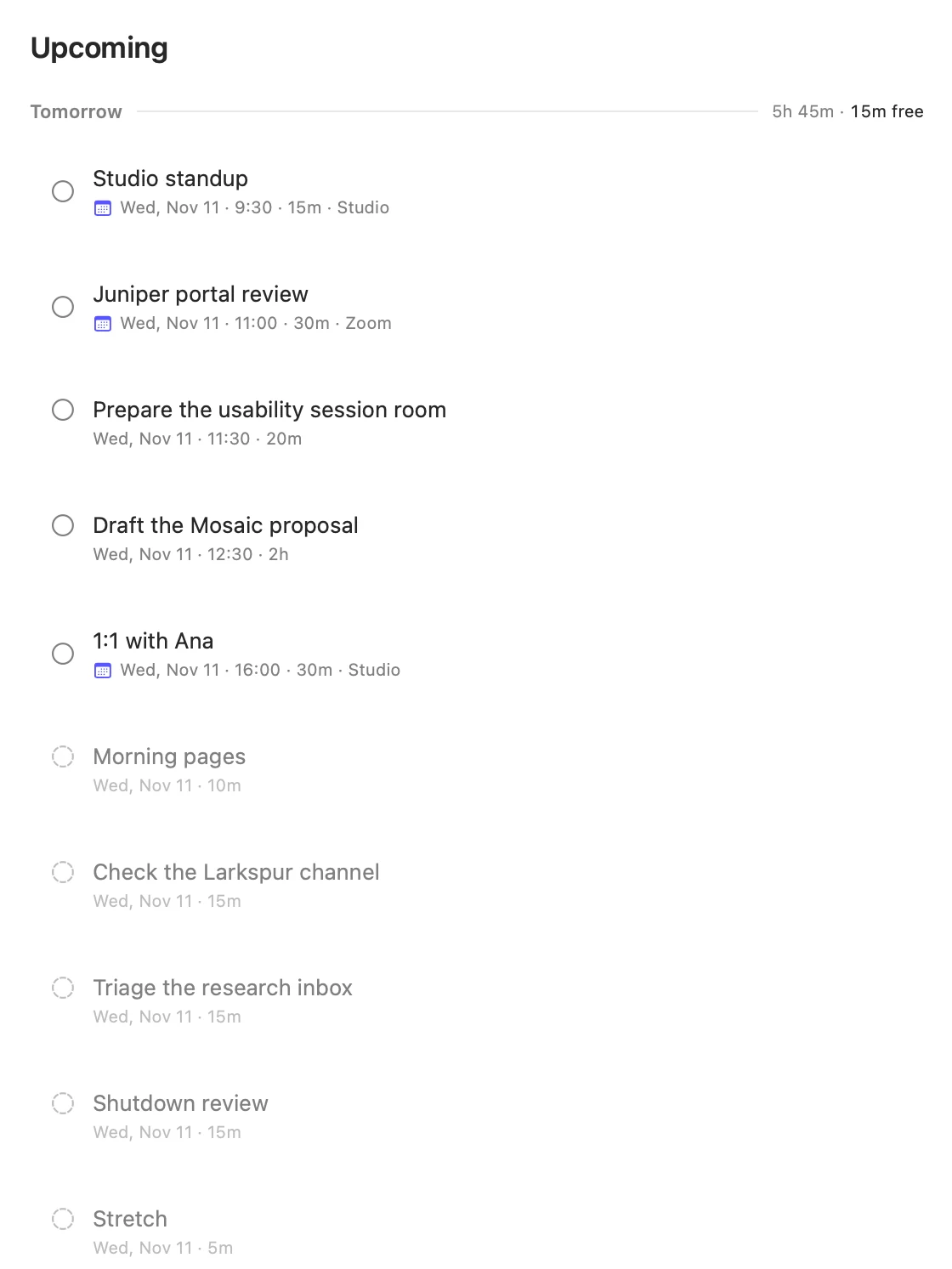
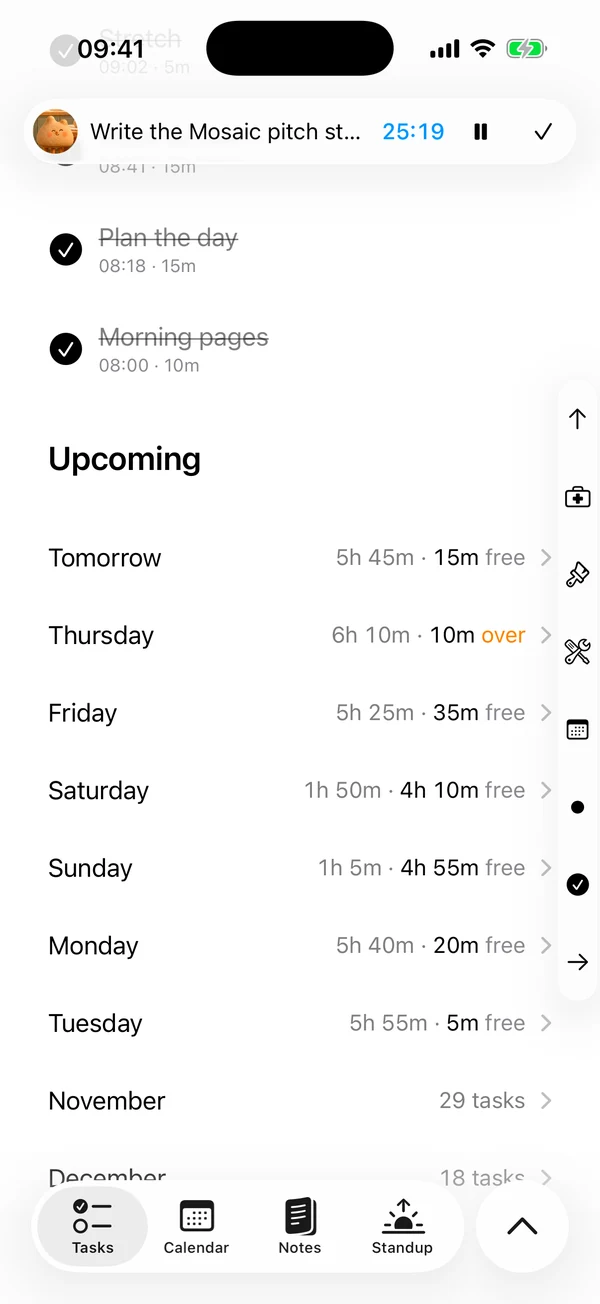
It isn't a task yet, so changing the template changes it, and deleting the template takes it away. It already counts toward its day's capacity.
You can act on one before its day:
On the Mac
- Click it to make the task and open it. It is a real task from then on, even if you press Cancel.
- Right-click it for Add now, Edit… and Skip this one.
- Hover over it and click the ✕ to skip it.
On the iPhone
- Tap it to make the task and open it. It is a real task from then on, even if you tap Cancel.
- Tap its dashed circle to make the task and finish it.
- Swipe left or hold it to Skip.
Skipping says "not this one". That day's task goes to the Archive under Deleted and doesn't come back unless you restore it.
Once it is a task
It behaves like any other task. You can change it, pin it, time it or push it, and the template doesn't change.
Each of a template's days is used once, whatever then happens to its task:
- Push it. Push Monday's task to Wednesday and Monday stays used. Wednesday still gets its own task, so you will have two, unless the template is set to Wait for it.
- Delete it. That day counts as used, and the template won't make it again.
If the last one isn't done
Each template has its own answer to If the last one isn't done, which you set in the template:
- Add another. Each day gets its own task, even while an earlier one is open. This is the choice unless you change it.
- Wait for it. The earlier task carries over, overdue, and the next one waits until it is done. If you finish the earlier one today, it counts as today's, so the task doesn't come straight back.
- Replace it. On its next day, the earlier task goes to the Archive and the new one takes its place. This only happens to a task nobody has touched. One you finished, timed, gave a time or pushed stays where it is.
Matter
To-do list that fits life
For the Mac and iPhone. It works offline, with no account.
Download for MacDownload for iPhone