Read the grid
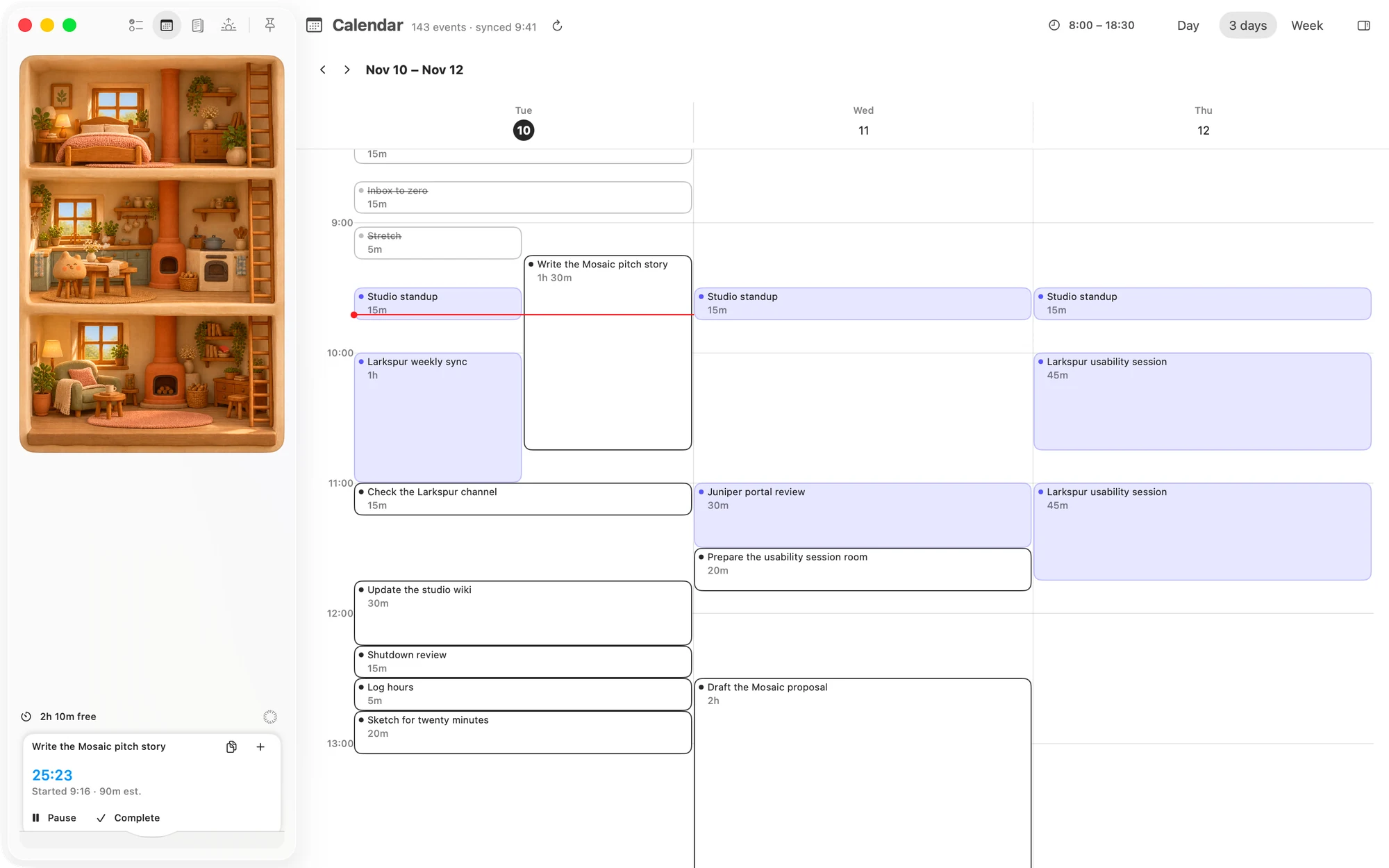
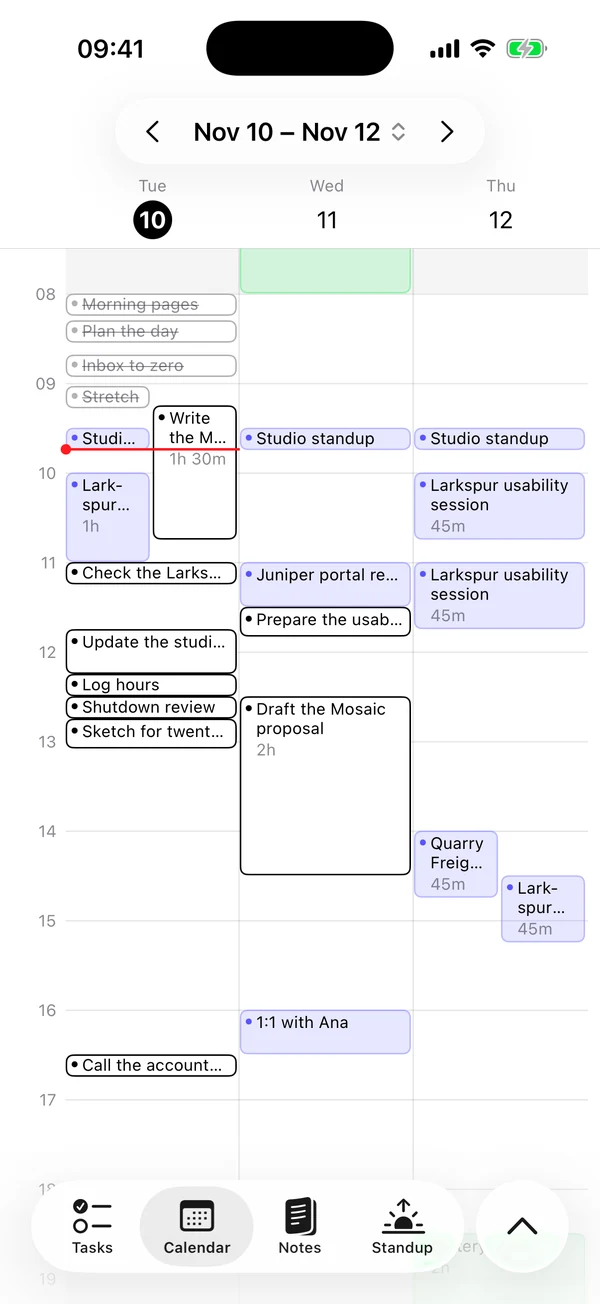
- Events are a light tint of their feed's colour with the feed's dot. Every feed's events show here, whether or not Treat as tasks is on and whether or not the feed is paused.
- Tasks have an outline and no tint.
- Finished work is struck through and fainter.
- Length shows under the title when the block has room. An event with no end time shows a dash.
- Things at the same time sit side by side, up to three across. The rest collapse into a count such as +2 more.
- Shaded hours are outside your day's hours.
- The red line is the present minute, on today.
- Past days fade in 3 days and Week.
An event that runs past midnight shows on each day it covers, from midnight on the later days.
All-day events sit in a row above the grid, with any tasks that have no time. That row shows two per day, then a count such as +3 more. In the Mac's Day view, it scrolls sideways and shows them all.
Looking at the Calendar never moves anything, and blocks can't be dragged on the grid.
Choose a view
Calendar opens on 3 days: today and the next two. Day is one day. Week runs Sunday to Saturday, whatever your region.
On the Mac
- Pick Day, 3 days or Week at the top right.
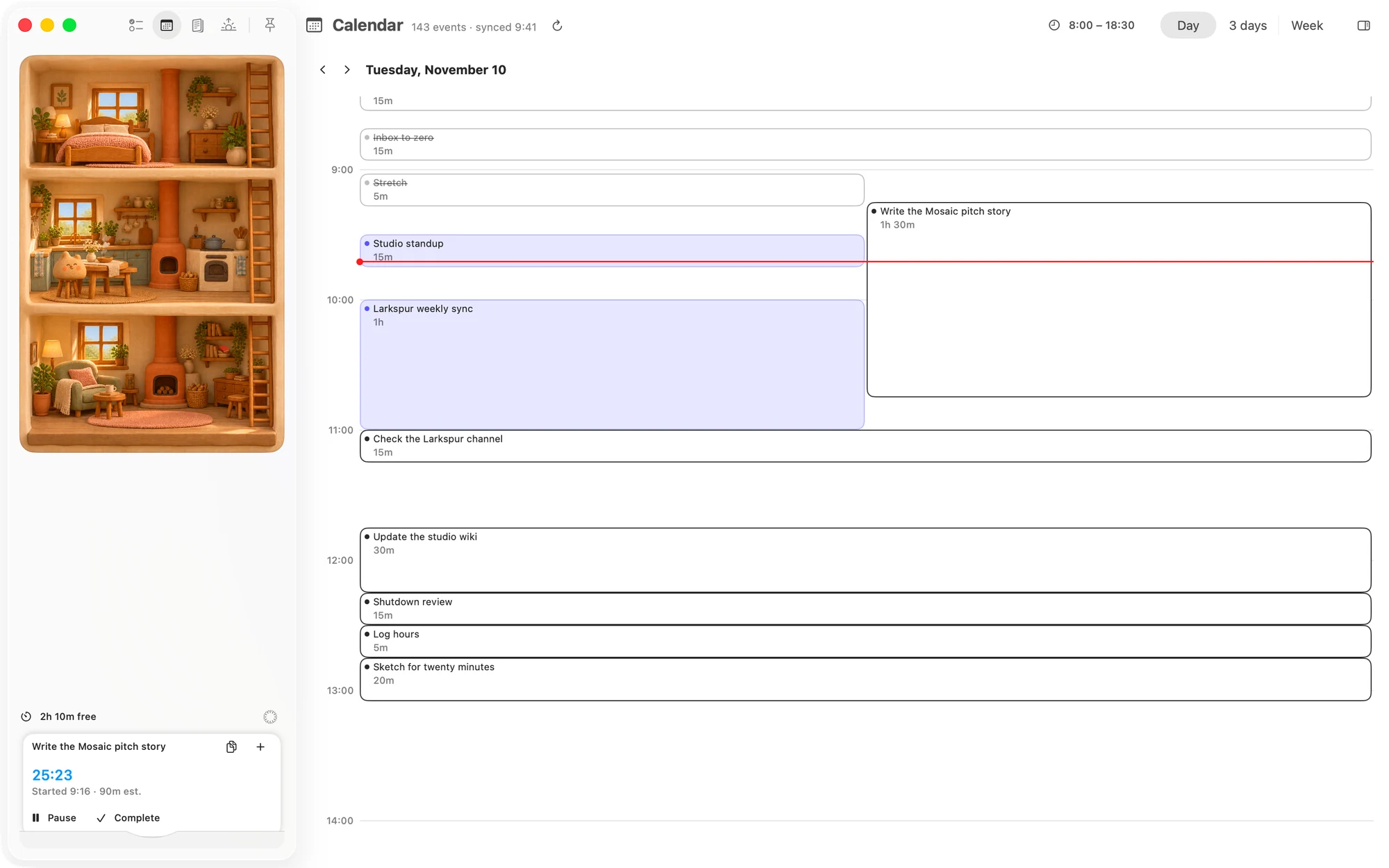
- Click a date above a column to open that day alone.
- ‹ and › beside the dates move by the whole view: one day, three days or a week.
- Today appears beside them when today is off screen.
With today on screen, the grid opens an hour before now. On other days it opens at the start of your day's hours, or a little before the first thing on the grid if that is earlier.
On the iPhone
- Tap the dates at the top for a menu of Day, 3 days and Week. It also has Today when you are away from it, and the time the feeds last synced.
- Tap a date above a column to open that day alone.
- ‹ and ›, or a swipe sideways on the grid, move one day in Day and 3 days, and a week in Week.
The grid opens at the start of your day's hours, or a little before the first thing on the grid if that is earlier.
Open what's on it
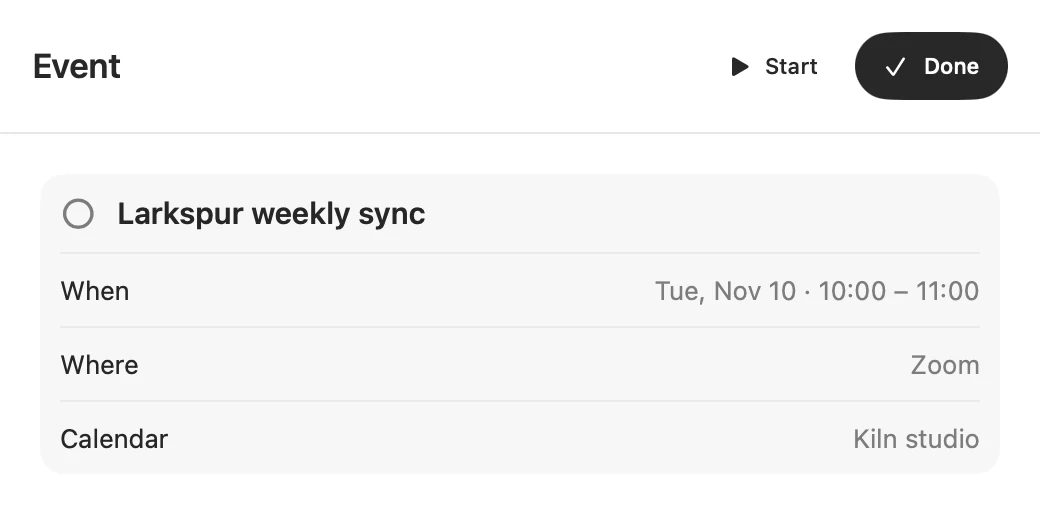
Click or tap a task to open its editor. Click or tap an event to open its sheet, where you can complete it, add notes and tags, and start a session.
To add a task from here, press ⌘N on the Mac, or tap the circle beside the tab bar and New task on the iPhone.
Change your day's hours
On the Mac, click the hours at the top right of the page, such as 8:00 – 18:30, and set Start and End. On the iPhone, set them in the Day section of Settings.
They apply to every day, and they are the same hours as in Settings. Matter shades the grid outside them and won't place work there. Day shape has more.
Refresh
- On the Mac, click the arrow beside the title, or press ⌘R. The title also shows how many events Matter holds across all your feeds, and when they last synced.
- On the iPhone, pull down on the grid, or tap the circle beside the tab bar and Refresh.
When it's empty
- No calendars yet means you haven't added a feed. See Add a feed.
- No events in range means none of your feeds has an event in the last 30 days or the next 30.
If a feed couldn't be fetched, the page says so at the top.
Mac keyboard shortcuts
- ⌘← and ⌘→ move back and forward by the view. With the cursor in a text field, they go to the ends of the line.
- ⌘T goes to today.
- ⌘R refreshes every feed.
- ⌘N makes a new task.
The first four are in the View menu as Previous, Next, Today and Refresh.
Matter
To-do list that fits life
For the Mac and iPhone. It works offline, with no account.
Download for MacDownload for iPhone