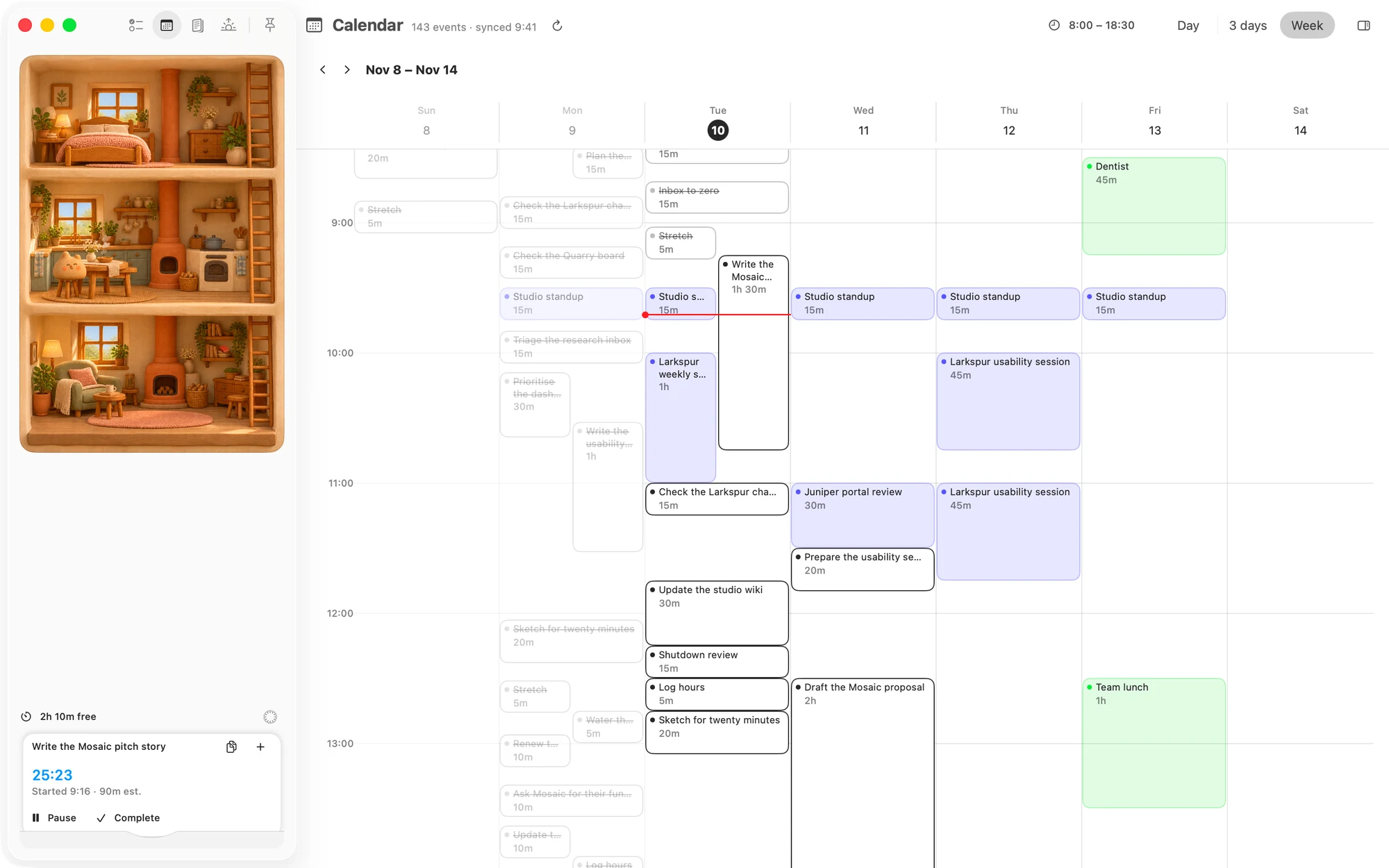
Turn it on or off
- On the Mac, open Settings ▸ Calendars and use the Treat as tasks checkbox on the feed's row.
- On the iPhone, open Settings ▸ Calendars and use the Treat as tasks switch under the feed.
A new feed starts with it on. It applies to all of a feed's events at once, and can't be set for one event. A change shows straight away and syncs to your other device.
With it on
- Events sit on Tasks, in Today and Upcoming, among your work. See Task list with calendars.
- A timed event counts as planned work, as a task with that estimate would. Its length goes into the day's planned time, so there is that much less free.
- Time you track on it comes off what it still counts for, and shows under Worked on the Mac.
- Completing it takes it out of planned time. Until you do, it counts for the whole day, even after it has ended. A 9:00 meeting you haven't ticked still counts at 15:00.
- All of its length counts, including any part outside your day's hours.
- An event across several days gives each day only the part that falls on it.
- Analysis includes it in the week's planned time.
With it off
- Events show on the Calendar page only. They leave Today and Upcoming, and the iPhone's Tasks card and the Mac's menu bar panel won't name one as next.
- They don't count as planned work, so they add nothing to the day's planned time.
- They still take room from the day. The part of a timed event inside your day's hours, and still ahead of now, comes off the room left. A day's budget is the smaller of your focus cap and that room, so this only shows when the room falls below the cap.
- Analysis leaves them out of the week's planned time. Time you track on one still counts as tracked.
With it on or off
- Matter places tasks around timed events. Automatic placement puts a task on top of one only when no free stretch can hold it. See Auto-placement.
- Events show on the Calendar page, in their feed's colour.
- Reminders, if you have them on, come for timed events. See Reminders.
- You can time them with a session, from the event's sheet.
- All-day events take no time. They don't count as planned work, don't take room and don't move tasks. An event with no end time is the same.
An example
Take a coming day with your day's hours at 8:00 to 20:00, a 6h focus cap, and nothing else planned.
- A 2h event, on: 2h planned against a budget of 6h, so 4h free.
- A 2h event, off: 10h of room leaves the budget at 6h, so 6h free.
- A 7h event, off: 5h of room brings the budget down to 5h, so 5h free.
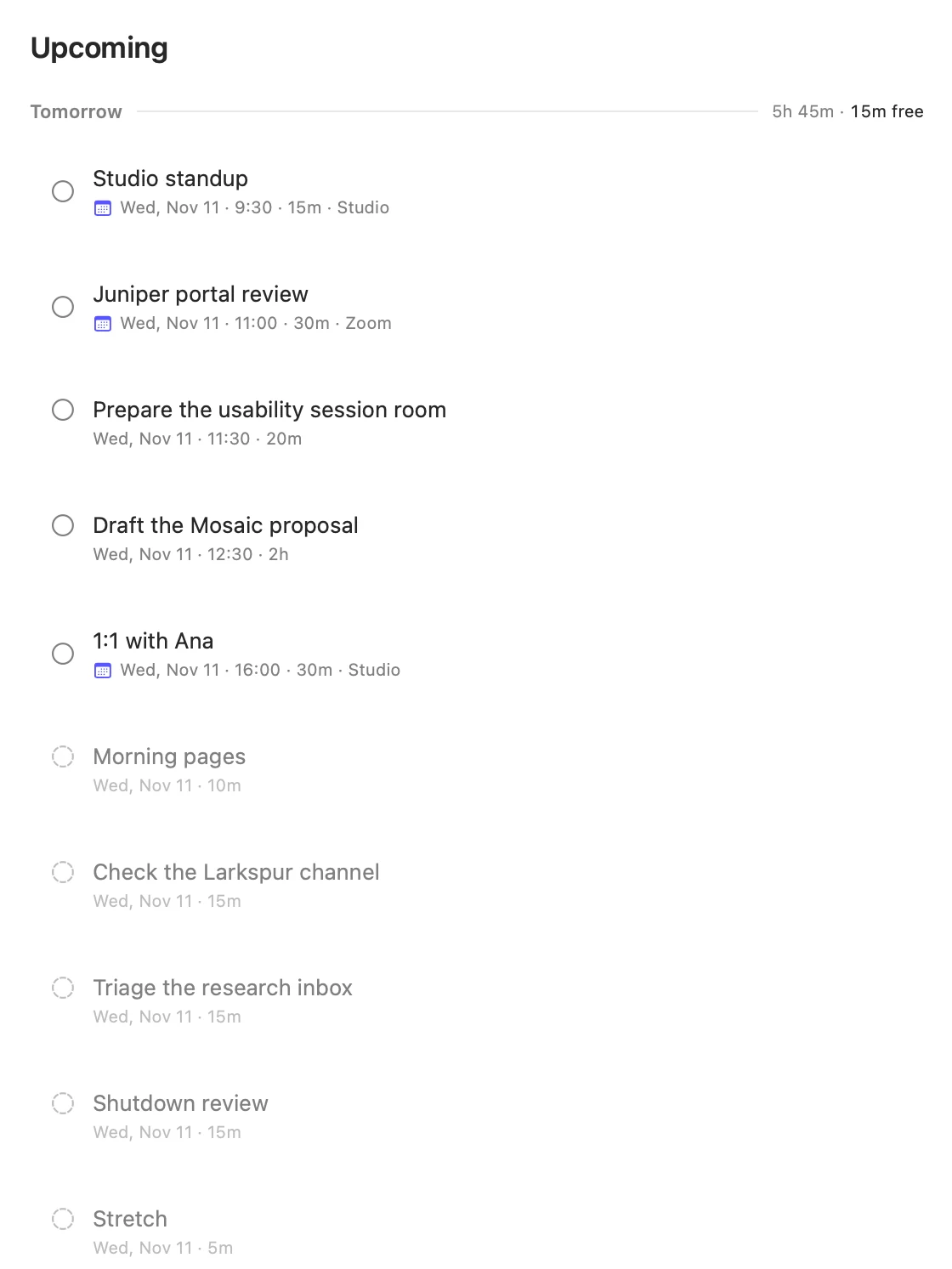
Matter checks today's free time when you add a task for today. See Avoid overplanning and Upcoming capacity.
Matter
To-do list that fits life
For the Mac and iPhone. It works offline, with no account.
Download for MacDownload for iPhone