Events from a feed with Treat as tasks on sit on Tasks, in the same list as your work. Events from a feed with it off stay on the Calendar page. Events that count has the difference.
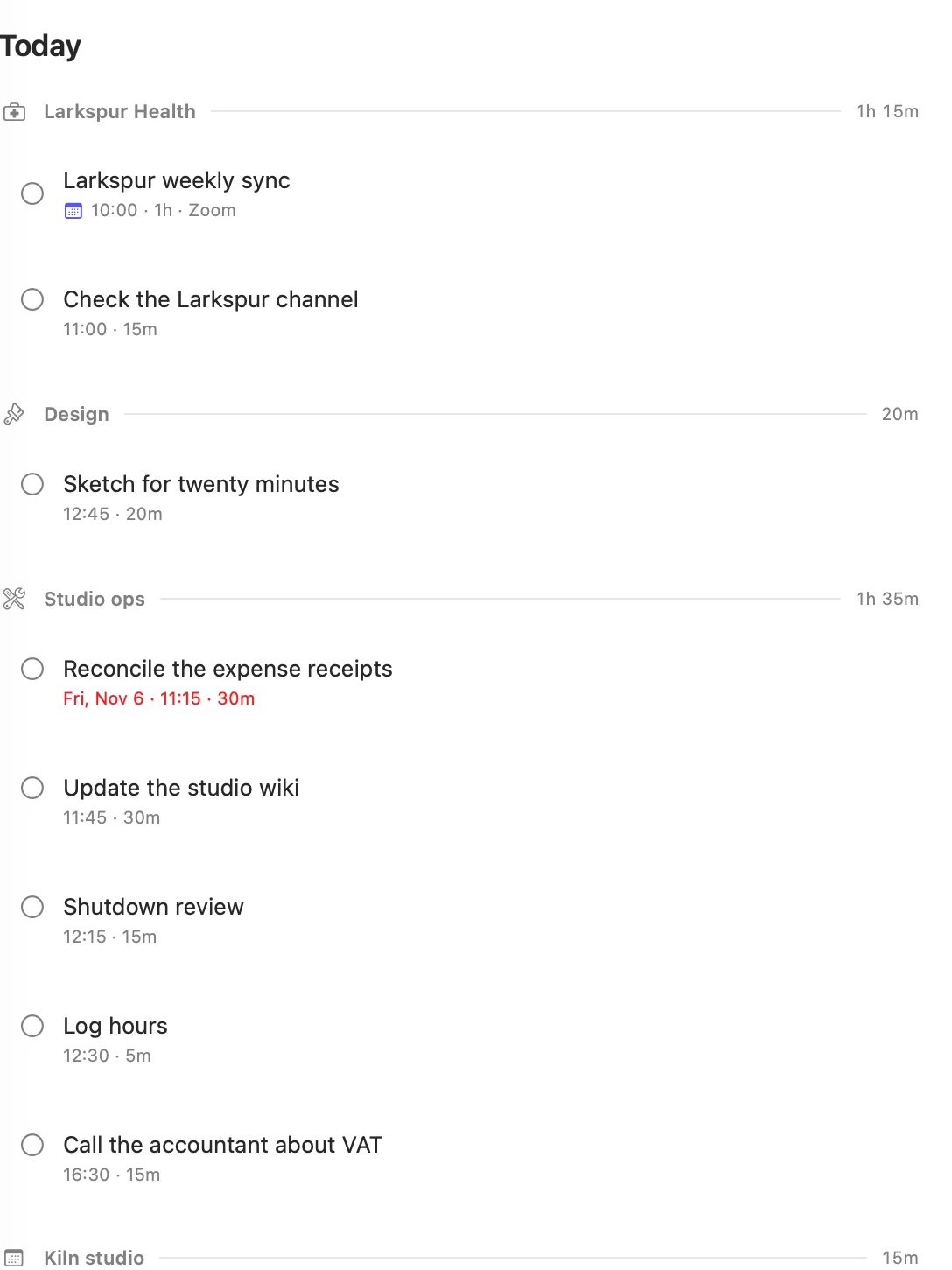
Where events land
Today holds today's events, in time order with your tasks.
- An event with a tag sits under that tag, and an event with several sits under each of them.
- An event with no tag sits under its calendar's name. Each calendar gets a heading of its own, after your tags and before No tag.
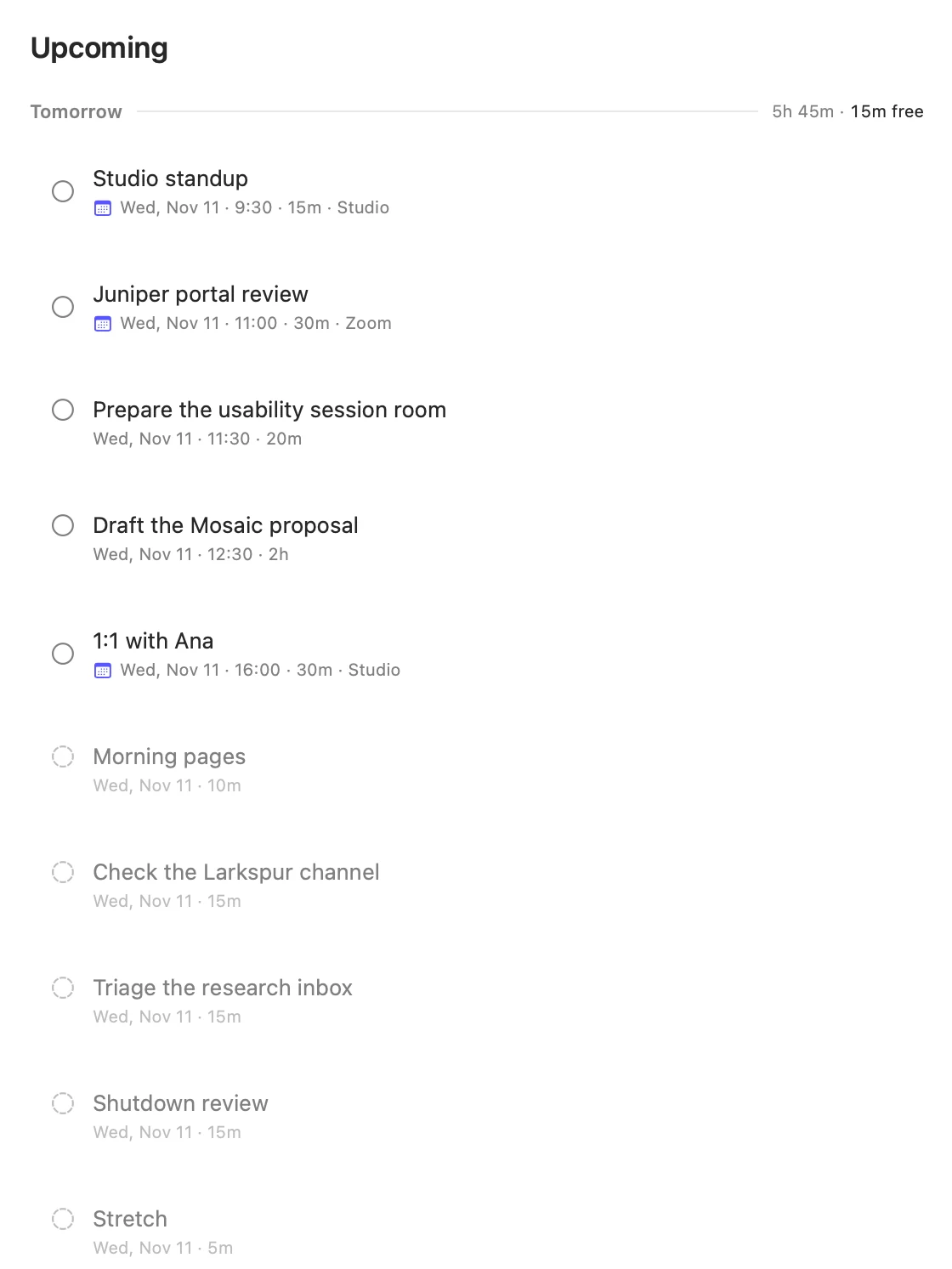
Upcoming holds later events in time order with the tasks of that day, under the day's heading for the next seven days and under the month after that. Matter has events for the next 30 days, so that is as far as they reach.
Yesterday's events don't carry over. An unfinished task moves forward into Today. An event you didn't finish stays behind on its own day, and leaves the list when that day ends.
An event that runs past midnight is listed on the day it starts. An all-day event says All day on the Mac, and has no line under its title on the iPhone.
Read an event's row
On the Mac, a row shows a calendar symbol in the feed's colour, then the time, length and place. In Upcoming it starts with the date.
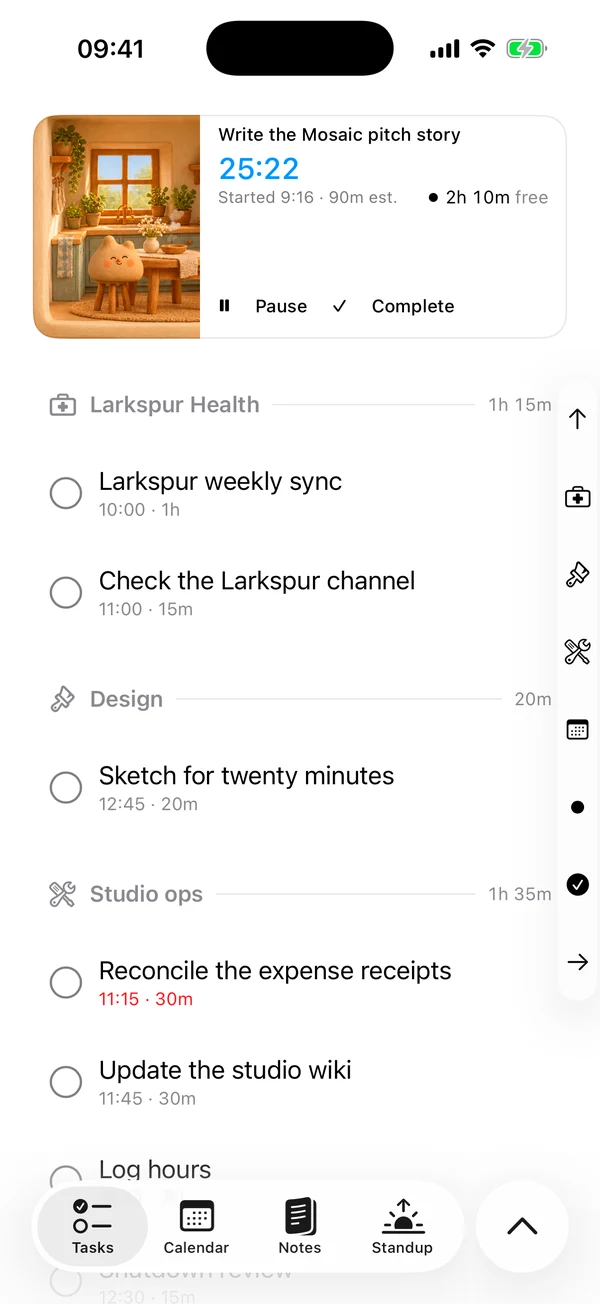
On the iPhone, a row shows the time and length, as a task's does. In the rail down the right edge, a calendar's group has the calendar symbol.
Work with an event
- Complete it. Click or tap the ○. It moves to the Done group at the foot of Today, whichever day it was for, and leaves the list when today ends. Press the tick to reopen it.
- Open it. Click or tap the row for its sheet: When, Where, Calendar, Notes and Tags.
- Tag it, or write a note on it. Both save as you go, and stay in Matter. Neither goes to your calendar. On a repeating event, they go on that one occurrence.
- Time it. Press Start in its sheet, or start it from the row as you would a task. Sessions covers the clock.
- Find it. Quick find on Tasks matches its title, as it does a task's. See Find a task.
Completing an event you never timed records its whole scheduled time as tracked, and Analysis shows it. An event you timed keeps the time on its clock. Reopening an event leaves that time in place.
On the Mac
Right-click a row for Complete or Reopen, Details…, and Start session or Stop session. You can also drag it onto the work bucket to start it.
On the iPhone
Hold a row for Done or Reopen, Details…, and Start or Pause. You can also swipe it to the right to start it.
What you can't do
Your calendar owns an event's title, time and place, so they can't be changed in Matter. Events have no push or delete, on either app, and swiping an event to the left on the iPhone does nothing. Change the event in your calendar, and the next refresh brings it in.
What else events change
- Time in the day. A timed event's length counts toward the day's planned time. See Events that count.
- Where tasks go. Matter places tasks around timed events. See Auto-placement.
- Next up. The iPhone's Tasks card and the Mac's menu bar panel can name a timed event as next. An all-day event is never next.
- Reminders. A timed event can remind you before it starts. See Reminders.
Matter
To-do list that fits life
For the Mac and iPhone. It works offline, with no account.
Download for MacDownload for iPhone