Getting around
Where everything sits in Matter on the Mac and the iPhone, with the Mac's keyboard shortcuts.
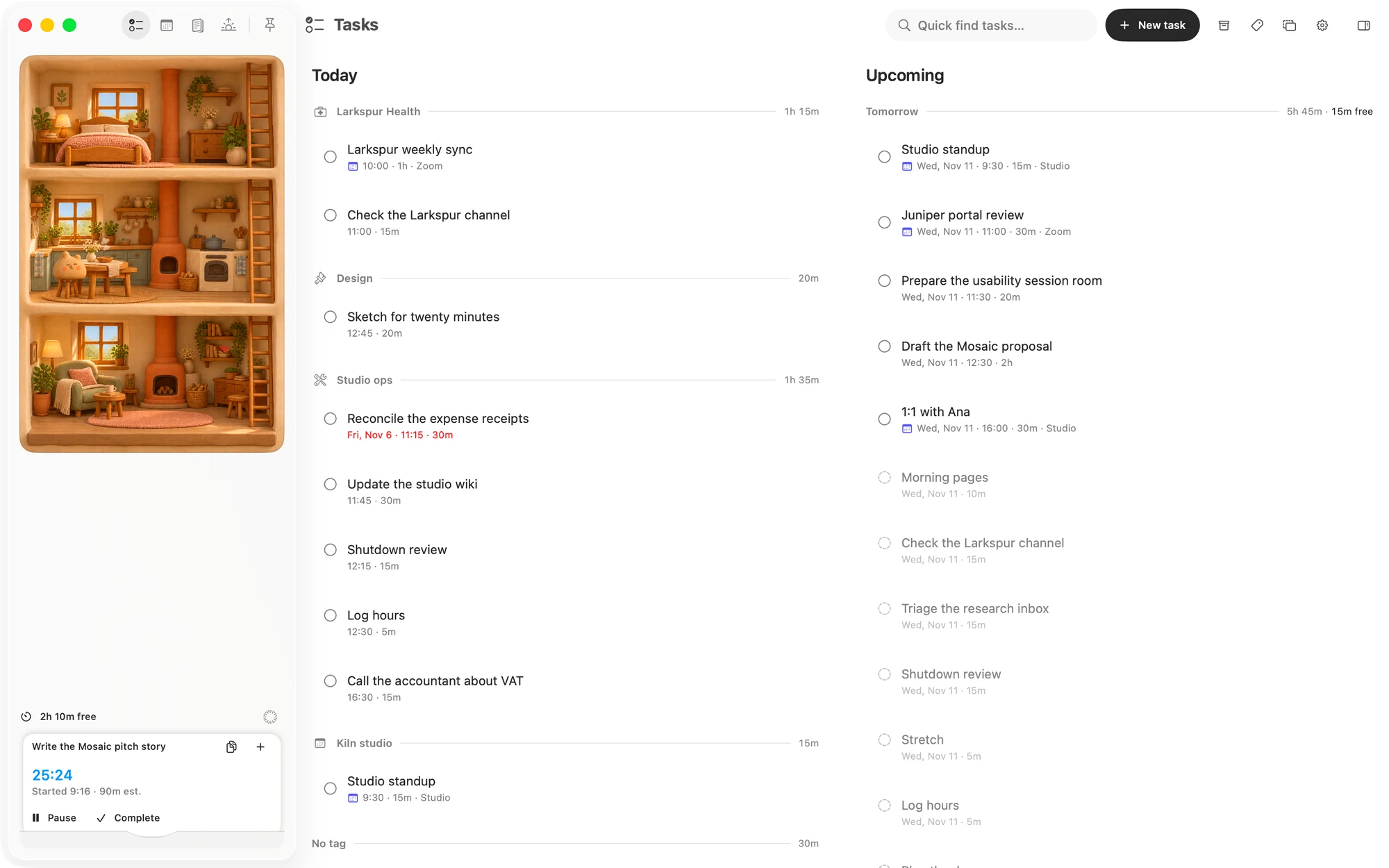
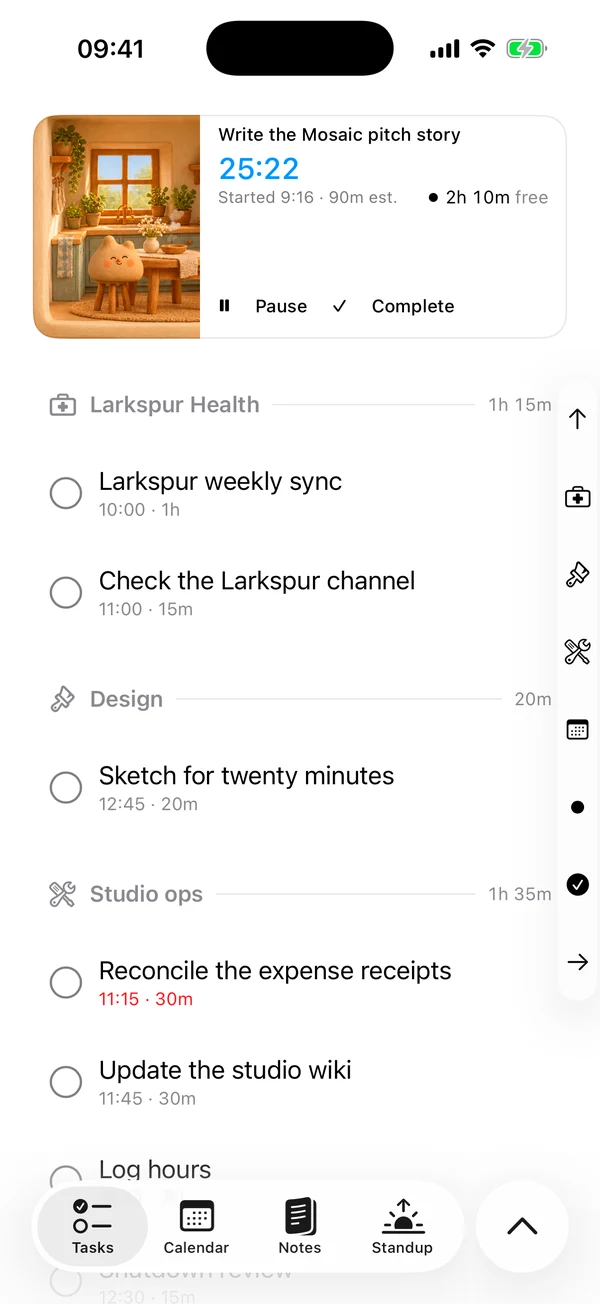
The four pages
- Tasks is your board: today's work and what is coming, with running sessions beside it on the Mac and above it on the iPhone.
- Calendar shows your days, with events from your feeds and your tasks. See Calendar views.
- Notes holds your notes and folders.
- Journal has one entry per day.
The Pin board, Analysis, Templates and the Archive are a step away from these pages. Where you find them differs on each app.
On the Mac
The sidebar
At the top is a row of icons: Tasks, Calendar, Notes and Journal, then the pin, which opens the Pin board. Rest the pointer on the pin and New task slides out beside it, on every page.
In the middle is whatever suits the page: Loafy's house on Tasks and Calendar, your notes list on Notes, and your days on Journal.
At the foot are the capacity reading and the work bucket.
- Click the capacity reading to see how the day adds up. Analysis is inside.
- The symbol at the bucket's right-hand end also opens Analysis.
- On Notes and Journal the bucket folds down to give the list more room. Rest the pointer on it for a moment to unfold it.
The toolbar
The toolbar belongs to the page you are on:
- Tasks: Quick find tasks…, New task, then Archive, Tags, Templates and Settings as icons.
- Calendar: the number of events and when feeds were last fetched, Refresh, your day's hours, and Day, 3 days and Week. Previous, next and Today are just under the toolbar.
- Notes: Quick find notes…, New folder and New note. Back appears after you follow a link to another note.
- Journal: Search days… and Add today.
Archive, Tags and Templates only have buttons on Tasks. The button at the far right of the toolbar is the side panel's, on every page. If the window gets too narrow, what doesn't fit moves into the » menu.
The side panel
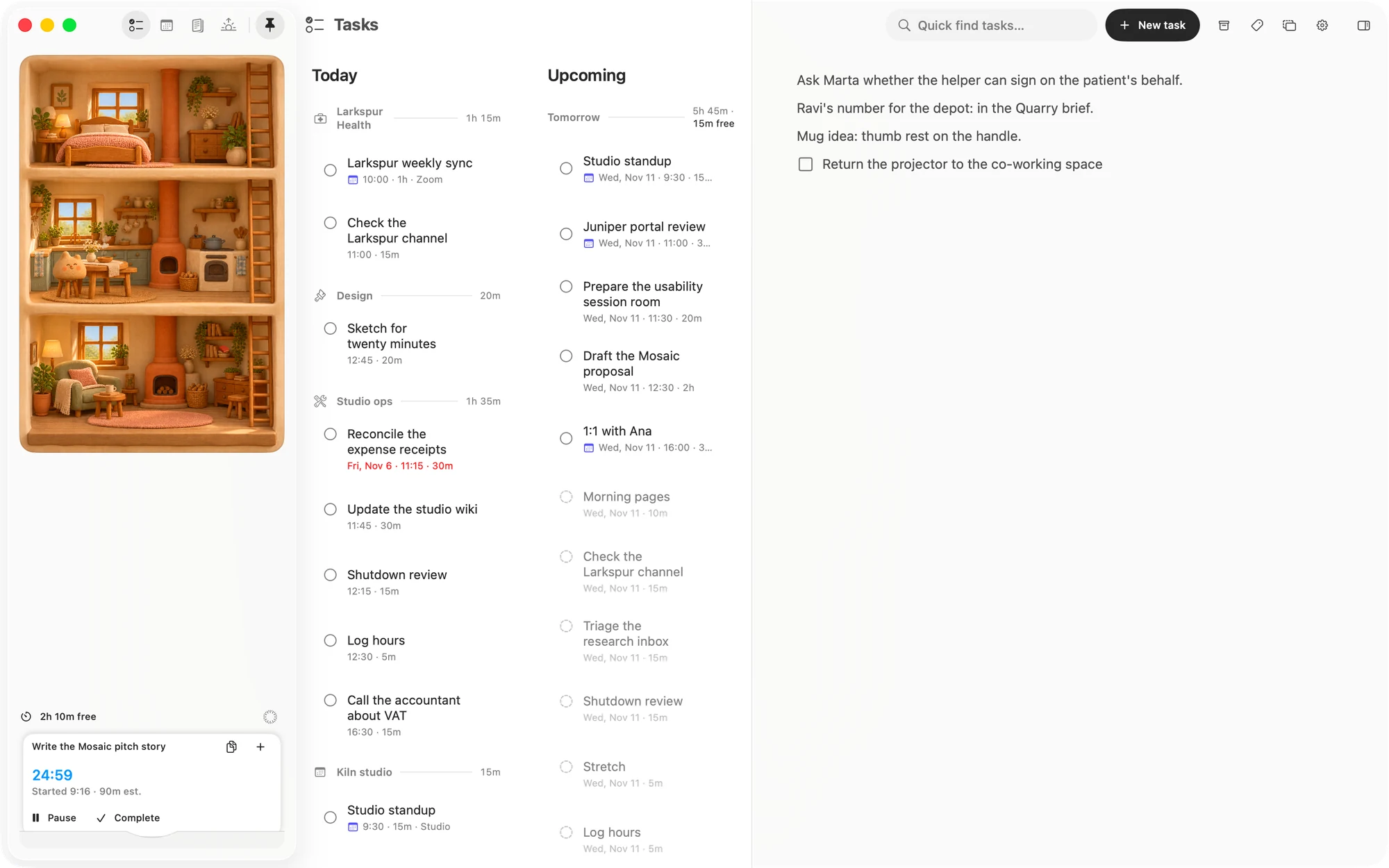
The Pin board, Analysis, Templates, Tags and the Archive open in a panel at the right of the page, one at a time. Opening another replaces the one that was there. The button that opened a panel shows that it is open, and clicking it again closes it.
The side panel button closes the panel, or brings back the last one it held, even after you quit Matter. The first time, that is the Pin board. ⌃⌘I does the same.
Drag the panel's edge to change its width. It goes back to its usual width the next time it opens.
Sheets
The task editor, the template editor and an event's details open as sheets over the window.
- The task editor has Cancel and Done. Esc cancels, and leaves everything as it was.
- The template editor and event details have Done. Esc does the same, because changes there are saved as you make them.
The side panel can stay open beside a sheet. The page's keys, such as ⌘N, don't act while a sheet is up.
Windows
- ⌥⌘N opens another window, with its own page.
- Closing the last window doesn't quit Matter, which stays in the menu bar. Click its Dock icon, or Open Matter in the panel, to get a window back.
Settings
Open Settings with ⌘, or the gear on Tasks. It has two tabs:
- General has Day (Start of day, End of day, Focus cap and Refuse work that doesn't fit) and App (Launch at login, Reminders and iCloud). The version and the Support, Privacy and Website links are at the foot.
- Calendars has your feeds, Add a feed… and Refresh all.
Tags are not in Settings on the Mac. They are in the side panel.
The Help menu has Matter Support and Privacy Policy.
Keyboard shortcuts
Most of these are also in the menus at the top of the screen, where the page keys grey out on pages they don't apply to.
Pages and windows
- ⌘N makes the page's new thing: a task on Tasks and Calendar, a note on Notes, and today's entry on Journal. With no window open, it opens one.
- ⌥⌘N opens a new window.
- ⌘, opens Settings.
- ⇧⌘N opens or closes the Pin board.
- ⌃⌘I closes the side panel, or brings back the last one.
Running work
- ⇧⌘P pauses the front card, and pressing it again brings that work back. It is in the Work menu as Pause or resume.
- ⇧⌘⏎ completes the front card.
Calendar
- ⌘← and ⌘→ move back and forward by the day, 3 days or week on screen. While the cursor is in text, they move it along the line instead.
- ⌘T goes to today.
- ⌘R refreshes your feeds.
Finding
- ⌘F searches on Tasks and Journal. On Notes it finds in the open note. Calendar has no search.
- ⌘G and ⇧⌘G go to the next and previous match in the note. Return and ⇧Return in the find field do the same.
- ⌘E finds the words you have selected.
- Esc closes find in the note.
- ⌥⌘F on Notes goes to Quick find notes….
Notes
- ⌃⌘N makes a new folder.
- ⇧⌘⌫ deletes the open note, after asking.
A note's lines, from the Format menu:
- ⌥⌘0 Text, ⌥⌘1 to ⌥⌘3 Heading 1 to 3, ⌥⌘4 To-do, ⌥⌘5 Bulleted list, ⌥⌘6 Numbered list.
- ⇧⌘U ticks a to-do.
- ⌃⌘↑ and ⌃⌘↓ move a line up and down.
- ⌘D duplicates a line.
- ⌘] and ⌘[ indent and outdent.
- Esc selects the line, and pressing it again ends the selection.
A note's words. More in Inline formatting.
- ⌘B, ⌘I and ⌘U make words bold, italic and underlined. ⇧⌘X strikes them through.
- ⇧⌘H highlights them.
- ⌘K adds or edits a link.
On the iPhone
Tabs
The tab bar has Tasks, Calendar, Notes and Journal. Beside it is a circle, which holds what a top bar would on another app.
The circle beside the tab bar
Tap the circle to open a column of buttons for the page you are on. Tap the circle again, or anywhere else, to close it.
Pin, which opens the Pin board, and New task are at the bottom on every page, with New task nearest your thumb. Above them are the page's own:
- Tasks: More and Search.
- Calendar: Add a calendar and Refresh.
- Notes: Search, or Find in note while a note is open, then New folder and New note.
- Journal: Search and Add today.
More
More is on Tasks only. It opens Settings, Templates, Analysis and Archive, each as a sheet over the page.
Settings has General (Reminders and iCloud), Day, Tags, Calendars and About. Tags live here on the iPhone, because there is no side panel.
The top of Tasks
The page opens on one card, with a slice of Loafy's room at its left. Beside the room is the day, or your running work once anything is running. See Sessions.
The bar under the status bar
Once that card scrolls off, a small bar hangs under the status bar. It shows Loafy close up in a circle, then the day, or the front session with its clock, Pause and Complete.
- Tap the bar to scroll back to the top.
- With more than one session running, the others stack behind it. Swipe across the bar to bring the next one forward.
The rail
Down the right edge of Tasks is a rail of your board's groups: an arrow for the top, a symbol for each tag or calendar, a dot for No tag, a tick for Done and an arrow for Upcoming.
Touch a mark to jump to that group, or slide along the rail to keep jumping. The group's name and hours show beside your finger. The rail needs at least three marks to appear, and it steps aside while you search.
Calendar
At the top of Calendar are previous and next, with the date between them. Tap the date to choose Day, 3 days or Week, or to go back to Today. You can also swipe across the days, and pull down to refresh.
With a keyboard
With a keyboard attached, a note's lines take the same keys as the Mac's Format menu.
Matter
To-do list that fits life
For the Mac and iPhone. It works offline, with no account.
Download for MacDownload for iPhone